The 15-day learning period and Your Curves
What day x of 15 means, why it can reset, how naming a new shape in Your Curves works, and what the Catchable Moment card and the I'm walking button do today.
The learning strip is stuck on day 1 of 15
Why. Most often you are still in the demo. The demo's 15-day learning strip restarts on every demo visit, so it always reads day 1. The strip only counts once the app is receiving your own readings from a connected sensor.
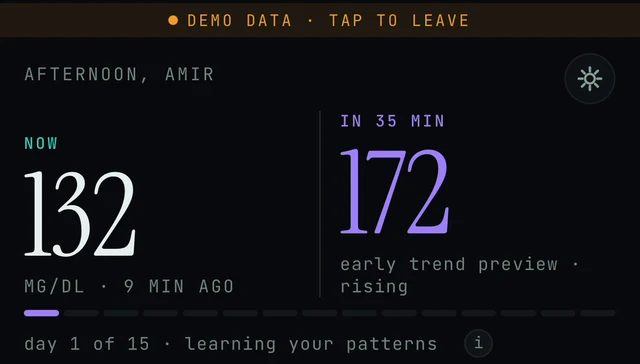
Top of the Today tab in the demo. The orange DEMO DATA · TAP TO LEAVE banner sits above the greeting, the NOW and IN 35 MIN numbers, and the day 1 of 15 strip.
Today → DEMO DATA banner
- Look at the very top of Today. If you see the orange DEMO DATA · TAP TO LEAVE banner, you are looking at simulated data, and the learning strip restarts on every demo visit.
- Tap the banner to leave the demo. The demo needs no account; live data does. If the app shows its start screen, choose Create account or Sign in, not Explore the demo. More in Demo vs live data and Sign in and account.
- Connect your sensor so the app receives your own readings: Connect your sensor. The strip is a learning clock for your own data, so it cannot move on demo data.
- Give it time. The store listing says the app learns your days over time and that a report needs 10 to 14 days of reliable data, so expect the strip to fill over roughly two weeks.
- If you are out of the demo, connected, and the strip still has not moved after several days, send a report: Today → top-right icon then Settings → Report a problem, or email contact@bioconscious.tech or call +1 (236) 235-5295.
The forecast only says "early trend preview"
Why. During the 15-day learning period the app has not seen enough of your days yet. It shows an early trend preview built from your sensor's recent direction rather than a forecast built on your own learned patterns. The store listing says the forecast horizon grows as the app learns your days, and the Your Curves screen says it forecasts further ahead as you name your patterns.
Today → learning strip
- On Today, look under the NOW and IN 35 MIN numbers for the strip labelled day 1 of 15 · learning your patterns (see the figure above). While that strip is still filling, the forecast is labelled "early trend preview" and the chart legend calls it "trend preview". That is the app telling you it is still learning.
- There is a small i beside the learning label. Tap it for more detail.
- Keep the app running with your live sensor connected so the learning period can progress. In the demo the strip restarts on every visit, so it never fills on demo data.
- When Your Curves shows NEW SHAPE SPOTTED, pick one of the suggested names or type your own in Or name it yourself... and tap Name. The line under the Your Curves heading says the app forecasts further ahead as you do. Steps in Find Your Curves below.
- Before leaning on any forecast number, read the CONFIDENCE card further down Today (53% hit rate in the demo). Its explanation, "How well we have actually been doing", says a high score is permission to lean on the forecast and a low one is a signal to check your sensor more often. More in Forecast and confidence.
- Make decisions from your CGM or meter and your care team, not from the preview. The app says "Insights, not medical advice."
Back to day 1 after a reinstall or a new phone, and the curve names are gone
Why. Curve names, the forecast horizon and the learning clock are kept on the phone. Saving them to your account ("Profile sync") is on the app's Planned list and has not shipped. A reinstall or a new phone therefore starts the learning period again and clears the names.
Care → Your data connection · Today → Your Curves → Name
- First check the banner at the top of Today. If it says DEMO DATA · TAP TO LEAVE, you are in the demo, where the strip restarts on every visit. Tap the banner to leave the demo and sign in to see your own progress.
- Until profile sync ships, expect the learning clock and your curve names to start over on a new phone or after a reinstall.
- After a reinstall, reconnect your glucose source first: Care → Your data connection (Apple Health, Health Connect, Dexcom or Eversense). Steps in Connect your sensor.
- Name each shape again when it appears in Your Curves: pick one of the suggested names or type your own in Or name it yourself..., then tap Name.
- If the clock or your names reset without a reinstall or a new phone, send a report: Today → top-right icon then Settings → Report a problem, and choose the diagnostics to attach.
Cannot find Your Curves (or the Curve Deck)
Why. The Curve Deck was renamed Your Curves in 5.1.2. In the app's screenshots it sits below the learning strip with the Today tab highlighted in the bottom bar. The store listing describes naming curves in the same breath as the Trends tab, so it may also be reachable from there.
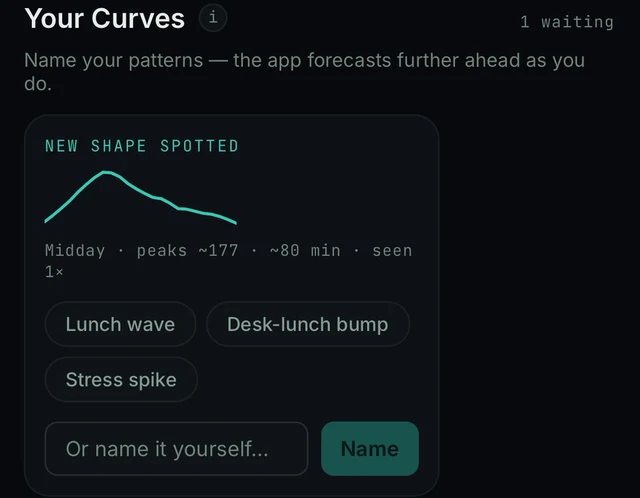
Today, scrolled down to Your Curves in the demo. The heading has an i button and the count 1 waiting on the right. Below it, the NEW SHAPE SPOTTED card with three suggested names, the Or name it yourself... field and the Name button.
Today → Your Curves
- Check the name. "Curve Deck" became "Your Curves" in 5.1.2. If your app still says Curve Deck, you are on an earlier build; the two are the same feature. Update when the App Store or Google Play offers a newer version.
- Open the Today tab (the first icon in the bottom bar) and scroll down past the chart. Your Curves is a section further down, with the heading Your Curves, an i button and a count such as 1 waiting on the right. If it is not on Today for you, look in the Trends tab.
- When the app has spotted a pattern, it shows a NEW SHAPE SPOTTED card there with suggested names, an Or name it yourself... field and a Name button. If there is no card yet, the app has not spotted a repeating shape for you yet; the learning strip shows how far along it is.
- To see it with sample data, tap Explore the demo on the sign-in screen. The demo shows a sample shape waiting to be named.
"1 waiting" is cut off behind the settings icon
Why. The settings icon floats in the top-right corner and can sit on top of the Your Curves header at some scroll positions. The full label is 1 waiting. This is cosmetic; nothing is lost.

Today → Your Curves header at one scroll position in the demo. The floating settings icon covers the end of the 1 waiting label.
Today → Your Curves header
- Scroll a little up or down. The settings icon stays in the corner while the page moves under it. In the app's own screenshots the same header reads 1 wai at one scroll position and 1 waiting in full at another (compare the figure above with the one in Find Your Curves).
- Nothing is lost. We read "waiting" as a shape that has not been named yet. It sits above the NEW SHAPE SPOTTED card with its suggestions (Lunch wave, Desk-lunch bump, Stress spike), the Or name it yourself... field and the Name button.
- If the label stays hidden at every scroll position on your phone, tell us: Today → top-right icon then Settings → Report a problem (attach the diagnostics you choose), or email contact@bioconscious.tech with a screenshot, or call +1 (236) 235-5295.
The Name button does nothing
Why. Name needs a chosen name first. You either tap one of the suggestions (Lunch wave, Desk-lunch bump, Stress spike) or type your own in Or name it yourself.... In the app's screenshots the Name button is shown dimmed before a name is chosen. On Android, older builds hid text fields behind the keyboard on several screens; 5.1.2 fixes that.
Today → Your Curves → Name
- Under NEW SHAPE SPOTTED, pick a name first: tap one of the suggestions, or tap Or name it yourself... and type a short name.
- Then tap Name.
- If Name still does nothing, close and reopen the app, go back to Your Curves and try again.
- On Android, if the keyboard covers the field, update to the newest version from Google Play; 5.1.2 fixed text fields hiding behind the keyboard. More in Android troubleshooting.
- Still stuck? Send a report: Today → top-right icon then Settings → Report a problem, or email contact@bioconscious.tech.
None of the suggested names fit
Why. The suggestions are generic guesses from the shape's timing and size. The card's own line reads "Midday · peaks ~177 · ~80 min · seen 1×". You do not have to pick one. The card has a field for your own name.
Your Curves → name it yourself
- Open Your Curves (see Find Your Curves above).
- On the NEW SHAPE SPOTTED card, ignore the suggested chips and tap the Or name it yourself... field under them.
- Type a short name you will recognise later.
- Tap Name.
- The app's screens show no way to rename a curve afterwards, so choose carefully. If you need a name changed, tell us through Settings → Report a problem.
Never see a Catchable Moment card
Why. The card appears only when the app spots a forming rise from your own patterns. In the first days of the learning period it has little to go on, so there may be no catchable moments to show. It is also only visible inside the app: push notifications are on the planned list, so nothing will tell you to open the app.
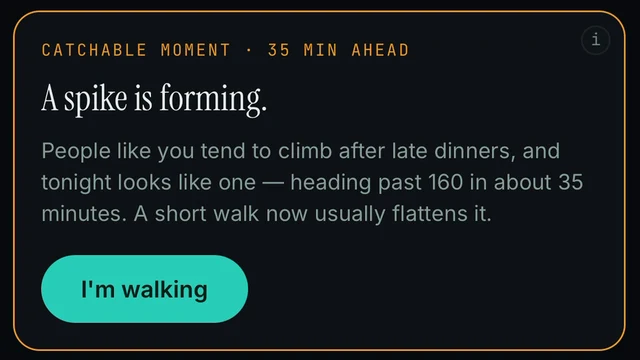
Today → below Your Curves in the demo. The amber CATCHABLE MOMENT · 35 MIN AHEAD card with the I'm walking button and a small i in the corner.
Today → below Your Curves
- Check which data you are looking at. The store screenshots are demo data (orange DEMO DATA · TAP TO LEAVE banner at the top). The card in them is a demo example.
- Know what is in the app today. The changelog lists push notifications as planned for 5.2, and the one-tap activity labels with measured outcomes as planned for 5.3. The app does not send a notification for a catchable moment, and on live data there is no published rule for how often the card appears. More in Alerts, widgets and watch.
- To see the example, open the demo (Explore the demo on the sign-in screen), then on Today scroll down past the learning strip and Your Curves. The CATCHABLE MOMENT card sits below Your Curves. Tap the small i on the card for its explanation.
- On live data, keep your sensor connected (Connect your sensor) and let the day x of 15 strip run. Naming shapes under Your Curves helps the app forecast further ahead; the app does not say it unlocks catchable moments.
- If something on Today looks wrong rather than missing, send a report: Today → top-right icon then Settings → Report a problem, and choose the diagnostics to attach.
Tapped I'm walking but the walk is not on the chart
Why. Today, I'm walking acknowledges the catchable moment. The amber card turns into a teal CAUGHT IT card whose title says walking now and which ends with "We'll watch the curve with you." Marking the activity on the chart with a measured outcome is the planned 5.3 "Learn" button, which has not shipped.
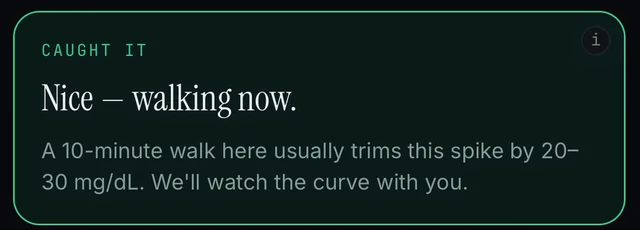
Today → the same spot in the demo after tapping I'm walking. The amber card is replaced by the teal CAUGHT IT card.
Today → CAUGHT IT card
- Look for the teal CAUGHT IT card where the amber CATCHABLE MOMENT card was. That card is the only confirmation the app gives today.
- Watch the Today chart over the next hour. The observed line is your real readings as they arrive; the trend preview is the 60-minute forecast. There is no walk marker on the chart. More on the lines in Reading the chart.
- Do not expect a marker or a before-and-after result. The changelog lists that under Planned 5.3 ("Learn" button: one-tap activity labels marked on the chart with measured outcomes). It has not shipped.
- If you were in the demo (orange banner at the top), the card and the readings are simulated. Tap the banner to leave the demo.
- Nothing needs fixing. Keep using your CGM and meter for decisions. Insights, not medical advice.
Tapped I'm walking by mistake
Why. The app's screens show no undo or cancel on the CAUGHT IT card. The forecast keeps following your real sensor readings, so a stray tap does not change your data.
Today → CAUGHT IT card → i
- There is no undo or cancel on the CAUGHT IT card in the app screens we have. The card only says walking now and that the app will watch the curve with you.
- The card has a small i in its top-right corner. Tap it for more detail.
- Keep using your meter or CGM and its alerts as the reference. The card is an insight, not medical advice, and the NOW reading on Today keeps coming from your sensor.
- If you want an undo for a stray tap, tell us: Today → top-right icon then Settings → Report a problem, or email contact@bioconscious.tech or call +1 (236) 235-5295.
The spike the card predicted never came
Why. The card is a pattern-based forecast ("People like you tend to climb after late dinners"). It is an insight, not a measurement, and it is less reliable early in the 15-day learning period. The CONFIDENCE card on Today shows how often the forecast has been right so far.
Today → CONFIDENCE card
- Check the Confidence card. On Today, scroll down past the What if… chips to the CONFIDENCE card (53% hit rate in the demo). The app replays its own forecast over your recent readings and counts how often your actual glucose landed inside the shaded band on the chart. It is scored over the last few hours only, and against the band, not the exact number, so a "past 160" line can miss while the band still holds. The app says the number is allowed to go down. More in Forecast and confidence.
- Use the score the way the app says to: a high score is permission to lean on the forecast, a low one is a signal to check your sensor more often. It moves with your day; meals, exercise and illness all knock it around.
- Give the app time. The forecast horizon grows as the app learns your days, so expect the forecast to change while the day x of 15 strip fills.
- Name your patterns. When Your Curves shows NEW SHAPE SPOTTED, pick a suggested name or type your own and tap Name. The app says it forecasts further ahead as you do.
- Always decide from your CGM or meter and your care team, never from the forecast. The app never forecasts a low; when readings run low it pauses and says "check your CGM".
- If the forecast keeps missing badly after the learning strip is complete, send a report with diagnostics: Today → top-right icon then Settings → Report a problem.
FAQ
- What does "day 1 of 15 · learning your patterns" mean?
- The app is in its 15-day learning period. It watches your days to learn your recurring glucose shapes. During this time the forecast is labelled "early trend preview", and the strip under the NOW number has 15 segments that fill as the days pass. In the demo the strip restarts on every visit, so it always shows day 1.
- What changes after the 15 days?
- There is no fixed list. The store listing says the forecast horizon grows as the app learns your days, and that after 10 to 14 days of reliable data you can generate a clean AGP report (the REPORT READY card). The forecast on Today stays the 60-minute preview it shows now.
- Why should I name my curves?
- Because the app forecasts further ahead as you do. Each named shape tells the app what a recurring pattern means to you, which helps it recognise the same shape next time. Pick a suggestion or type your own, then tap Name.
- What is a catchable moment?
- An amber card on Today that appears when the app sees a rise forming from your patterns, for example "A spike is forming" with "35 MIN AHEAD". It explains why it thinks so and offers one tap, I'm walking, to record what you are doing. It is an insight, not medical advice, and not a replacement for your CGM alerts.
- Does I'm walking mark my walk on the chart or measure the result?
- Not yet. Today it turns the card into CAUGHT IT, which says walking now and that the app will watch the curve with you. Marking the activity on the chart with a measured outcome is the planned 5.3 "Learn" button.
- Are my curve names and learning progress saved to my account?
- Not yet. They are kept on the phone. Saving curve names, the forecast horizon and the learning clock to your account is listed as planned. A reinstall or a new phone starts the learning period again.
- What does "early trend preview" mean, and why does it say day 1 of 15?
- For the first 15 days the app is learning your patterns, so the forecast is labelled an early trend preview. The strip above the chart fills in day by day. In the demo the strip restarts every time you open the demo. Saving the learning clock to your account (profile sync) is planned, not shipped, so a reinstall may start it again.
Related: Forecast and confidence · Reading the chart · Demo vs live data · Connect your sensor · Settings and Report a problem
Still stuck? We answer.
A person at Bio-Conscious reads every message. Tell us your phone model, your sensor, and what you see on the screen.
Real app screens · demo data. Endobits shows insights, not medical advice. Always follow your care team's guidance and your sensor's own alerts for treatment decisions.
More help: All support articles · Connect your sensor · Set up Endobits Companion