Demo data or your data: how to tell, and how to switch
The amber DEMO DATA · TAP TO LEAVE banner, the DEMO chip on the chart and a greeting that is not your name all mean you are looking at simulated data, and this page shows how to leave it and reach your own readings.
These are not my numbers: the app is still in the demo
Why. You are still inside the demo. Every demo screen has an amber banner at the top that reads DEMO DATA · TAP TO LEAVE, and the chart card carries a DEMO chip with the words Demo data · simulated. Nothing on these screens comes from your sensor. The demo runs with no account and no sensor, so it never switches to live data on its own.
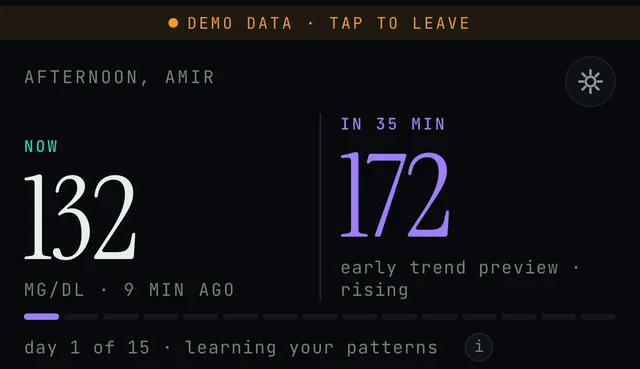
Today screen in the demo, top part: the amber banner, the greeting, the Settings icon in the top-right corner, the NOW and IN 35 MIN numbers and the day 1 of 15 strip. Every item here is simulated.
Today → DEMO DATA · TAP TO LEAVE → Create account or Sign in → Care → Your data connection → CONNECT
- Look at the very top of the screen. If you see the amber strip DEMO DATA · TAP TO LEAVE, and the chart card shows a DEMO chip with Demo data · simulated, you are in the demo. Nothing on this screen comes from your sensor.
- Tap the amber DEMO DATA · TAP TO LEAVE banner to leave the demo. You should reach the first screen, with Create account, Sign in and Explore the demo. If you land somewhere else, close and reopen the app to get to the first screen.
- Tap Create account, or Sign in if you already have one. The demo needs no account; live data does. Help with the first screen and your account: Signing in and your account.
- Connect your glucose source. On Android: Care → Your data & reports, scroll to Your data connection and tap CONNECT next to Health Connect or Dexcom API. On iPhone: follow the Apple Health steps in Connect your sensor, or use Dexcom API in the same Care tab list if you have a US Dexcom account. A DIY rig (your own self-hosted glucose site) is connected under Settings → Connections → DIY rig.
- Wait for the first readings. Readings through Apple Health arrive up to about 60 minutes behind the sensor; readings through Health Connect arrive about three hours behind. Every chart is labelled LIVE, REPLAY or DEMO, so once real readings are in, the chip on the chart card should no longer say DEMO.
- If the amber banner is gone, a source is connected, and you still see no readings after that wait, open Settings (the top-right icon on Today) and use Settings → Report a problem with diagnostics attached, or email contact@bioconscious.tech or call +1 (236) 235-5295. See also No data or not updating.
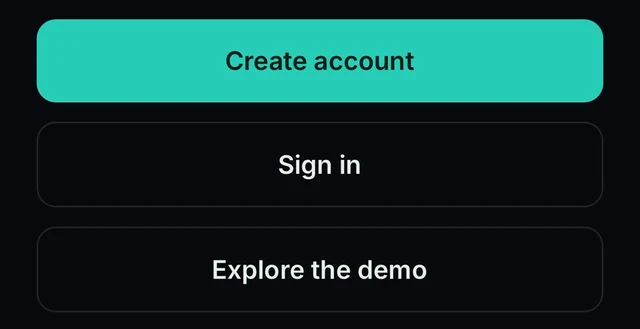
The first screen of the app, bottom part: Create account, Sign in and Explore the demo. Live data needs an account; the demo does not.
The reading is stuck at 132 and says 9 min ago
Why. The NOW number in the demo is a simulated reading from a fictional day, not a feed from your sensor. The age label (9 MIN AGO, 10 MIN AGO) can move, but the value will never become your own reading while the DEMO chip is on the chart. If you have already left the demo and the age keeps growing on a LIVE chart, that is a different problem (usually readings arriving late from the sensor's side): see No data or not updating.

Today screen, top of the chart card: the DEMO chip and the words Demo data · simulated. While this chip is here, the NOW number is simulated.
Today → chart card → DEMO chip · Today → DEMO DATA · TAP TO LEAVE
- Look at the chart card on Today. If it shows the DEMO chip and the words Demo data · simulated, the number is demo data, not your sensor.
- Tap the amber DEMO DATA · TAP TO LEAVE banner at the top of the screen to leave the demo. Live data needs an account, so if you see the screen with Create account, Sign in and Explore the demo, create an account or sign in (do not tap Explore the demo again).
- Connect your sensor. Apple Health, Dexcom and Eversense users: follow Connect your sensor. On the Care tab (Care → Your data connection) you can connect Health Connect or Dexcom API directly. DIY rig: Settings → Connections → DIY rig.
- After connecting, give it time: up to about 60 minutes through Apple Health, about three hours through Health Connect on Android. If the chart still says DEMO, or the reading's age keeps growing well past that, see No data or not updating and the three checks on Connect your sensor.
- Do not act on the demo number. Use your meter or CGM and its own alerts for any decision.
The greeting shows a name that is not mine
Why. In the demo the app shows a fictional persona, and the greeting uses that persona's name. Since version 5.1.1 the demo persona is John; the app screens on this page show AMIR, so the name you see can differ by build. While the amber banner is on, the greeting, readings, curves and report all belong to the demo persona, not to any real person and not to you.
Today → DEMO DATA · TAP TO LEAVE → Sign in · Today → top-right icon → Settings → Report a problem
- Look at the top of the Today screen for the amber DEMO DATA · TAP TO LEAVE banner (shown in the first figure). If it is there, you are in the demo and the greeting names the demo persona, not a real person. Everything on the screen (readings, curves, report) is simulated.
- To leave the demo, tap the amber banner. From the first screen choose Sign in or Create account to use your own account.
- If the amber banner is gone, you are signed in, and the greeting still shows a name that is not yours, open Settings (the icon in the top-right corner of Today) and use Report a problem (available from version 5.1.2), or email contact@bioconscious.tech or call +1 (236) 235-5295 and tell us what name you see.
The chart still says DEMO after I signed in
Why. Every chart is labelled LIVE, REPLAY or DEMO so you know how fresh the data is. DEMO means the chart is still drawing simulated data. Signing in alone does not bring in readings: the app needs a connected source (Apple Health, Dexcom, Eversense, a DIY rig, or Health Connect on Android) and time for the first readings to arrive. If the amber banner is still at the top, the app is still in demo mode.

The bottom bar of the app: TODAY · TRENDS · CARE. The Care tab is on the right.
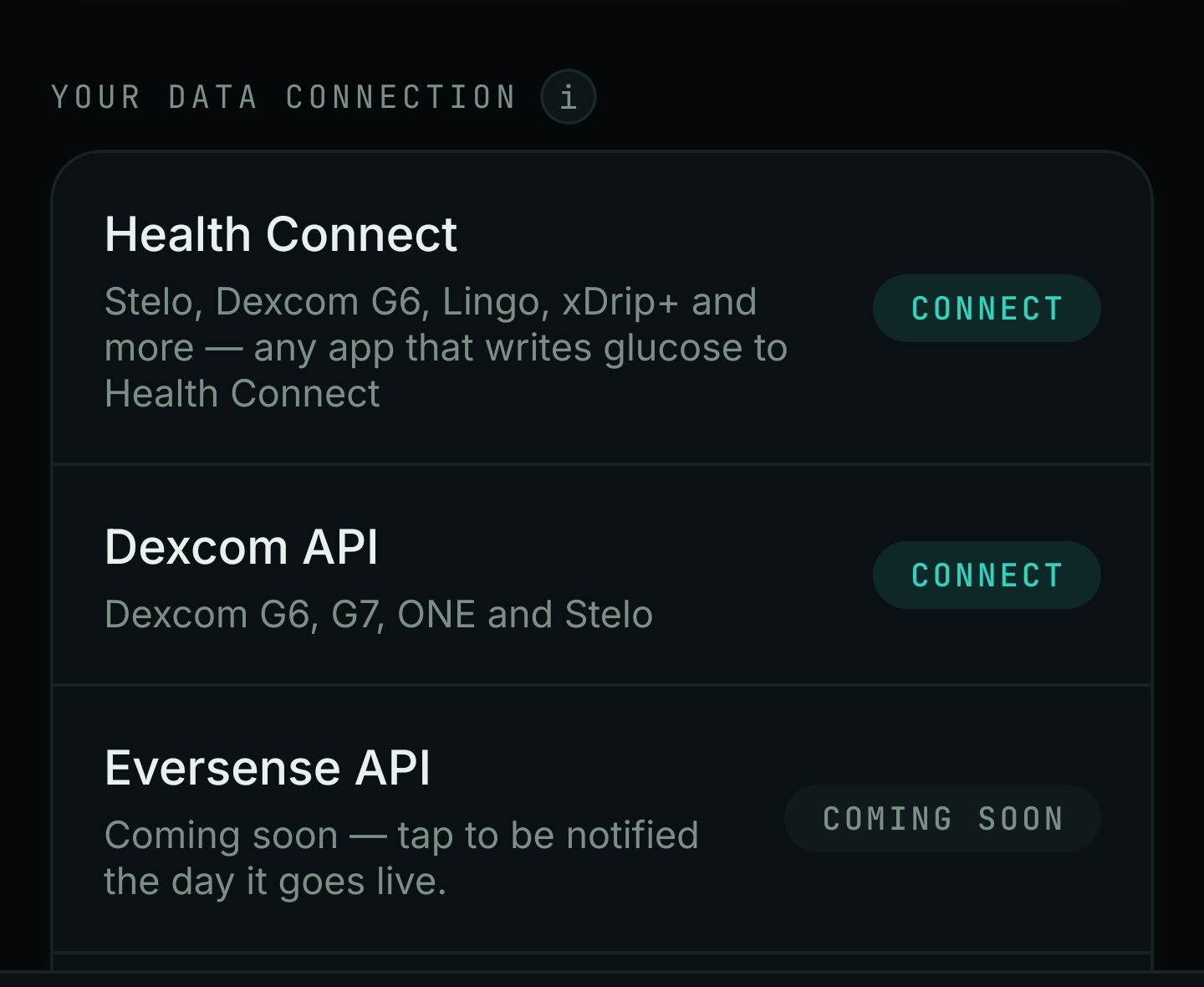
Care tab → Your data & reports → scroll to Your data connection. Tap CONNECT next to your source. Eversense API shows COMING SOON, which is expected.
Care → Your data & reports → Your data connection → CONNECT
- If the amber DEMO DATA · TAP TO LEAVE banner is at the top of the screen, the app is still in demo mode. Tap the banner to leave the demo. If you land on the first screen, tap Sign in (or Create account).
- Open the Care tab (bottom right, labelled CARE). The screen is headed Your data & reports. Scroll to the section Your data connection.
- On Android, tap CONNECT next to Health Connect (Stelo, Dexcom G6, Lingo and other apps that write glucose to Health Connect) or next to Dexcom API (Dexcom G6, G7, ONE and Stelo; US Dexcom accounts). Eversense API shows COMING SOON; that is expected, not an error. More: Connect Health Connect and Endobits Companion for Android.
- On iPhone, Dexcom API is connected from the same Your data connection list. Every other sensor comes in through Apple Health: turn on Apple Health sharing in your sensor's own app, then check that iPhone Settings → Privacy & Security → Health → Endobits has Glucose ON. A DIY rig (your own self-hosted glucose site) is connected in Settings → Connections → DIY rig. Full steps per sensor: Connect your sensor.
- Give it time. Readings reach Apple Health with up to about 60 minutes of delay, and Health Connect readings arrive about three hours behind the sensor. A brand-new sensor may need a few hours of warm-up. A DIY rig is real-time. Closing and reopening Endobits after the wait is a reasonable check.
- Once real readings are flowing, the chart should no longer carry the DEMO chip. If the chart still says DEMO a few hours after connecting, use Settings → Report a problem (Settings is the top-right icon on Today) or email contact@bioconscious.tech.
Tapped CONNECT in the demo and nothing connects
Why. The demo runs without an account, and live data needs one. We have not confirmed exactly what the app does when you tap CONNECT while the amber banner is up, so the reliable route is to leave the demo first and connect from a signed-in account.
Today → DEMO DATA · TAP TO LEAVE → Create account or Sign in → Care → Your data connection → CONNECT
- The demo runs on simulated data and needs no account. A live sensor connection needs an account. Leave the demo first: tap the amber DEMO DATA · TAP TO LEAVE banner at the top of the screen.
- On the first screen, tap Create account, or Sign in if you already have one. If you land somewhere else after leaving the demo, close and reopen the app to reach the first screen.
- Once signed in, open the Care tab (bottom bar: TODAY · TRENDS · CARE). On Your data & reports, scroll to Your data connection and tap CONNECT next to your source (Health Connect or Dexcom API; Eversense API shows COMING SOON). The list is pictured in the section above. Full guide: Connect your sensor.
The learning strip goes back to day 1 of 15 every time I open the demo
Why. This is by design. From version 5.1.2 the demo's 15-day learning strip restarts on each demo visit, so every visitor sees the same starting point. The demo does not learn you; it runs on simulated data. Your own learning clock starts on live data, once you sign in and connect a source. Saving the learning clock to your account (profile sync) is planned, not shipped, so do not expect the clock to follow you between devices yet.
Today → day 1 of 15 strip → (i)
- Nothing to fix in the demo. The strip under NOW and IN 35 MIN ("day 1 of 15 · learning your patterns", pictured in the first figure) restarts at day 1 on every demo visit. This is the behaviour from 5.1.2 onward; if your build is older it may differ.
- To start learning from your own readings, tap the amber DEMO DATA · TAP TO LEAVE banner at the top, choose Create account or Sign in, then connect your glucose source in Care → Your data connection (per-source steps: Connect your sensor).
- The learning clock is not yet saved to your account (profile sync is a planned feature), so it may not follow you to another device or a fresh install. More on the first 15 days: Learning and your curves.
The demo already has a 14-day report, a 53% hit rate and 9 named patterns on day 1
Why. The demo ships with a simulated history so you can see every card: the Confidence meter, Your Curves (NEW SHAPE SPOTTED, 1 waiting), the CATCHABLE MOMENT card and the REPORT READY card. None of it is measured from you. One part of it is also still planned rather than shipped: one-tap activity labels such as the I'm walking button are on the roadmap, so do not expect that part on live data yet. On live data, the Confidence percentage is scored from your own recent readings, and the AGP report becomes available only after 10 to 14 days of reliable data.
Today → CONFIDENCE → (i) · Care → YOUR REPORT → 14-DAY REPORT
- Treat every card under the amber DEMO DATA banner (the Confidence meter, Your Curves, CATCHABLE MOMENT, REPORT READY) as a preview, not as your result. The chart chip says Demo data · simulated.
- To get your own report and confidence score, leave the demo by tapping the amber DEMO DATA · TAP TO LEAVE banner, sign in or create an account (live data needs an account; the demo does not), then connect a source: Care → Your data connection → CONNECT next to your source. Per-sensor steps: Connect your sensor.
- Expect the real 14-day report only after 10 to 14 days of reliable data. On live data the Confidence percentage is scored over the last few hours only, against the shaded band, and it is allowed to go down. More: Forecast and confidence and Reports and trends.
- If you re-open the demo later, the 15-day learning strip restarts at day 1. That is normal.
I left the demo by accident and cannot get back into it
Why. Tapping DEMO DATA · TAP TO LEAVE exits the demo. The demo is started from the first screen with the Explore the demo button, so you can re-enter it from there. If you have already signed in to an account, we have not confirmed a demo button inside the signed-in app, so you would need to get back to the first screen first.
First screen → Explore the demo
- The amber bar at the top of the demo reads DEMO DATA · TAP TO LEAVE. Tapping it is how you leave the demo, so this is expected, not a fault.
- If you are now on the first screen (Create account / Sign in / Explore the demo, pictured in the first section), tap Explore the demo. The demo needs no account and no sensor.
- If you are signed in to an account instead, we have not confirmed a demo button inside the signed-in app. Open Settings (Today → top-right icon → Settings) and look for a way back to the first screen; if you cannot find one, tell us with Settings → Report a problem or by email and we will confirm the path.
- Expect the demo to start over each time: the 15-day learning strip restarts on every demo visit.
Frequently asked
- What does the amber DEMO DATA · TAP TO LEAVE banner mean? Is something wrong?
- Nothing is wrong. The banner means the whole app is running on simulated data from a fictional persona. No sensor and no account are involved. Tap the banner when you want to leave the demo and sign in for live data.
- Do I need an account or a sensor to try the demo?
- No. On the first screen tap Explore the demo. The demo needs no account; live data does.
- What do the LIVE, REPLAY and DEMO labels on the chart mean?
- Every chart carries one of these labels so you always know how fresh the data is. DEMO means simulated data (the chip also says Demo data · simulated). LIVE and REPLAY are the labels used for your own readings, and LIVE is the one to expect once current readings are flowing from your connected source. If your chart says REPLAY and you are not sure why, ask us through Settings → Report a problem.
- Is the demo based on a real person's data?
- No. The demo persona is fictional (John since version 5.1.1). The readings, meals, curves and report in the demo are simulated.
- Why does the demo never show a low?
- The app never shows a predicted low, in the demo or on live data. When readings run low the forecast pauses and the app tells you to check your CGM. Use your meter or CGM and its own alerts for lows.
- Will the curve names and what-ifs I tried in the demo carry over to my real account?
- Do not count on it. The demo restarts from day 1 of 15 on every visit, and saving curve names, forecast horizon and the learning clock to the account is a planned feature, not a shipped one. Name your curves again once you are on live data.
- How do I get from the demo to my own data?
- Tap the amber DEMO DATA · TAP TO LEAVE banner, then Create account or Sign in. Open the Care tab, then Your data & reports, scroll to Your data connection and tap CONNECT next to your source. First readings can take up to about 60 minutes through Apple Health and about three hours through Health Connect. See endobits.com/help/connect-your-sensor for the full steps.
- Why does the demo always say day 1 of 15?
- The demo's 15-day learning strip restarts every time you enter the demo, so it always shows day 1. With your own account and sensor connected, the count should move on as Endobits learns your patterns.
- Can I try it before I sign up or without a sensor?
- Yes. On the first screen tap Explore the demo. The whole app runs on simulated data with no account and no sensor, and an amber DEMO DATA · TAP TO LEAVE banner stays at the top so you know nothing is live. Live readings need an account and a connected sensor.
Still stuck? We answer.
A person at Bio-Conscious reads every message. Tell us your phone model, your sensor, and what you see on the screen.
Real app screens · demo data. Endobits shows insights, not medical advice. Always follow your care team's guidance and your sensor's own alerts for treatment decisions.
More help: All support articles · Connect your sensor · Set up Endobits Companion