Your 14-day report and the Trends tab
Where the report lives, how long it takes to build, why the demo had one on day one, what gaps mean, what Invite your clinician does, and how to get the report to your care team.
Where is my report? I only ever see the Today screen
Why. The report lives on the Care tab, the third tab in the bar at the bottom of the app (TODAY, TRENDS, CARE). New users tend to stay on Today and never notice that bar. The Care screen is titled Your data & reports, and the report card sits at the top of it under YOUR REPORT. In the demo, the same report also appears as a REPORT READY card further down, below Your Curves.

The bar at the bottom of every main screen: TODAY · TRENDS · CARE. The report is under Care, on the right.
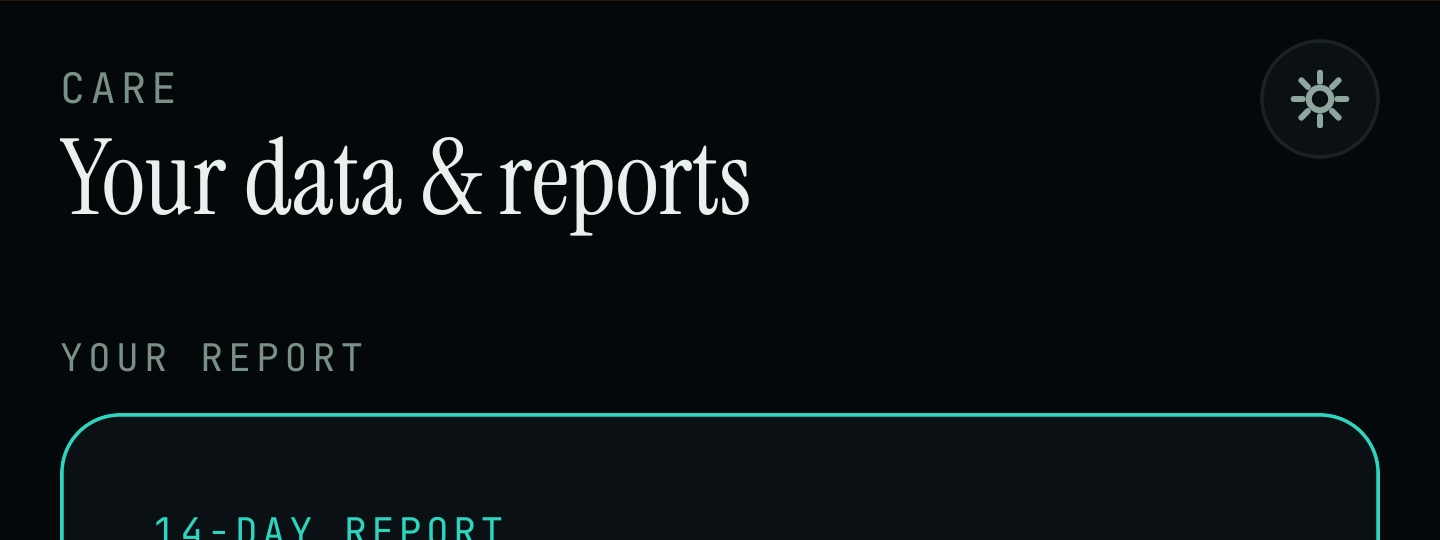
Care tab → Your data & reports. The 14-DAY REPORT card is the first thing on the screen, under YOUR REPORT.
Care → Your data & reports → YOUR REPORT → 14-DAY REPORT
- Look at the bar at the bottom of the app. It has three tabs: TODAY, TRENDS and CARE.
- Tap CARE. The screen is headed CARE and titled Your data & reports.
- Under YOUR REPORT you will see the 14-DAY REPORT card. Tap the card.
- No card, or nothing to tap yet? The report is built after 10 to 14 days of reliable data. The Today screen shows your progress under the NOW number (for example "day 1 of 15 · learning your patterns"). Keep your sensor connected and check back later. More in The report is not ready yet.
- In the demo, the Today screen also shows a REPORT READY card ("14 days of clean data") below Your Curves, with a chevron on its right. That card is simulated; see why the demo had a report on day one.
The report is not ready yet
Why. The 14-day report needs 10 to 14 days of reliable data before it can be generated. A new account starts on day 1. The Today screen shows how far along the app is with the line under the NOW number, "day 1 of 15 · learning your patterns". Our screenshots stop just below the title of the 14-DAY REPORT card, so we cannot quote the exact words it shows while it is still waiting.
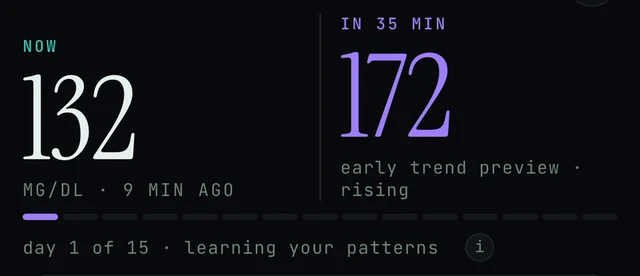
Today screen, under the NOW and IN 35 MIN numbers: the progress strip and "day 1 of 15 · learning your patterns". Demo data.

The REPORT READY card in the demo, below Your Curves. On your own data it appears once the report has been built.
Care → Your data & reports → YOUR REPORT → 14-DAY REPORT
- The report needs 10 to 14 days of reliable data first. Make sure your sensor is connected and stays connected, so the app keeps receiving readings every day. Per-sensor steps: Connect your sensor.
- Check where the report lives: open the Care tab (bottom right), then look under YOUR REPORT for the 14-DAY REPORT card. If there is nothing to open yet, the report is still being built. Come back after 10 to 14 days of data.
- When the report is ready, the app shows a REPORT READY card with "14 days of clean data" and a chevron. Tap it to open or generate the AGP report. In our screenshots this card sits below Your Curves, with the Today tab selected; it may also appear on Care.
- On Today, the line under the NOW number ("day X of 15 · learning your patterns") shows how many days the app has been learning from your data. It is a useful sign that readings are arriving. We have not confirmed that it is the same clock as the report, so treat it as a guide, not a countdown.
- If days pass and the count or the report card never changes, check the sensor connection under Care → Your data connection (see the day count is stuck), or send diagnostics with Settings → Report a problem. Settings is the icon in the top-right corner of Today.
The demo showed Report ready, my own account does not
Why. The demo runs on simulated data, so it always shows a finished 14-day report, and its learning strip restarts at day 1 every time you open the demo. Your real account starts from day 1 with your own readings. Live data needs an account and a connected sensor; the demo needs neither. Nothing was lost: the demo report was never yours.
Today → DEMO DATA · TAP TO LEAVE → Create account or Sign in → Care → Your data connection → CONNECT
- Tap the amber DEMO DATA · TAP TO LEAVE banner at the top of the screen to leave the demo. More on telling demo data from your own: Demo data or your data.
- On the Endobits first screen, tap Create account (or Sign in if you already have one). The demo works without an account; live data needs one. Help with accounts: Signing in and your account.
- Connect your sensor. Open the Care tab at the bottom of the screen (Your data & reports), scroll to YOUR DATA CONNECTION and tap CONNECT next to your source: Health Connect on Android, or Dexcom API. Eversense API shows COMING SOON for now; that is expected. Most iPhone sensors come in through Apple Health instead: Connect Apple Health. Full guide: Connect your sensor.
- Give it time. The app needs 10 to 14 days of reliable readings before a report can be generated. Your Today screen shows your progress as "day X of 15 · learning your patterns". Once you are past that point, check the YOUR REPORT card on the Care tab (14-DAY REPORT).
The day count is stuck, so the report never builds
Why. No readings are reaching Endobits, so there is no reliable data to count. The usual reasons: the Apple Health permission for Endobits is off; your sensor app is not writing to Apple Health or Health Connect; a row in the Your data connection list was never finished (it still shows CONNECT); or, on Android, the data is simply late, because readings reach Health Connect about three hours behind the sensor. Whether partial days count toward the report is not stated in our sources.
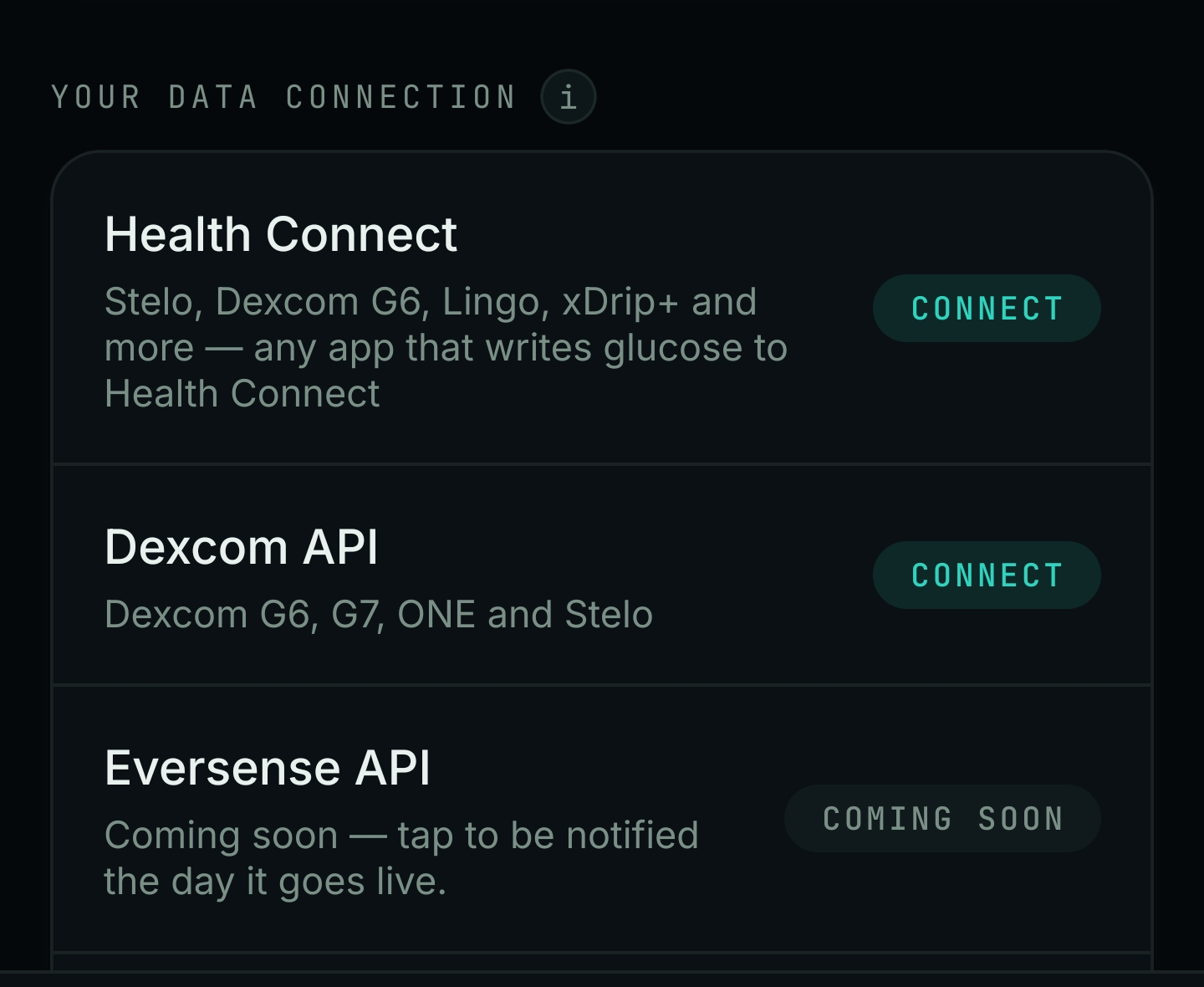
Care tab → Your data & reports → scroll down to YOUR DATA CONNECTION. A row that still says CONNECT is not connected yet.
Care → Your data & reports → Your data connection
- Check you are not in the demo. If an amber DEMO DATA · TAP TO LEAVE banner sits at the top of the Today screen, tap it to leave. The demo's 15-day learning strip restarts on every demo visit, so it will never advance there.
- Open the Care tab and scroll to Your data connection. If the row for your source still shows CONNECT, tap it and finish connecting.
- iPhone: open iPhone Settings → Privacy & Security → Health → Endobits and make sure Glucose is ON.
- iPhone: check that your sensor app is writing readings at all. Open Apple Health → Browse → Blood Glucose. If nothing is there, fix sharing in the sensor app first (see Connect your sensor). Endobits can only read what Health has.
- Android: make sure your sensor app writes to Health Connect (Dexcom G6, Stelo and Lingo do; Dexcom G7 and FreeStyle Libre do not yet). Sync runs in the background every 15 minutes once Health Connect is connected, and readings arrive about three hours behind the sensor. More: Connect Health Connect and Android troubleshooting.
- Bring Endobits back to the foreground. Dexcom, Eversense and DIY rig connections refresh when the app returns to the foreground, not only at launch.
- If readings are now showing on Today but the count still does not move, go to Settings → Report a problem and attach diagnostics. See also No data or not updating.
The report has gaps or missing days
Why. Readings for those hours never reached Endobits. Common reasons: a new sensor was warming up (a few hours with no readings), the phone was off or out of range of the sensor, the Health permission was off for a while, or the readings are still on their way. Apple Health delivers most sensors with up to about 60 minutes of delay and Health Connect about three hours, so the newest hours can look empty for a while. Only a DIY rig is real time. How the report treats a day with gaps is not described in our sources.
Care → Your data & reports → YOUR REPORT → 14-DAY REPORT
- Check that your sensor app is still writing readings. On iPhone open the Apple Health app → Browse → Blood Glucose; on Android check your sensor app and Health Connect. If a day is missing there too, Endobits never received it. Endobits can only read what Health has.
- On iPhone, confirm Endobits is allowed to read glucose: iPhone Settings → Privacy & Security → Health → Endobits → Glucose ON. If it was off for a while, those hours were never shared.
- Allow for the delay. Most sensors reach Apple Health up to about 60 minutes behind, Health Connect about three hours behind, and a new sensor may need a few hours of warm-up before its first readings. Only a DIY rig is real time (DIY rig). Check again later.
- Keep the sensor connected and let the app collect 10 to 14 days of reliable data; the report is built from that window.
- If days are blank even though your sensor app shows readings for them, go to Settings → Report a problem and attach diagnostics so we can compare. Syncing problems in general: Data not syncing.
How do I get the report to my doctor? There is no share button
Why. Our sources show how to open the report (the card with the chevron) and say it is built to bring to your next appointment, but they do not show a share, export or PDF control. We cannot tell whether one exists or what it is called, so we will not guess at a button. Two routes are documented: show the report on your phone at the visit, or use Invite your clinician so your clinic sees your data in the Endobits clinical dashboard.
Care → Your data & reports → YOUR REPORT → 14-DAY REPORT
- Open the report. Tap the Care tab (bottom right), then under YOUR REPORT tap the 14-DAY REPORT card. In the demo the report is also announced as a REPORT READY card ("14 days of clean data") with a chevron, below Your Curves.
- If you cannot find a share or export control in the report, show the report on your phone at your appointment. The App Store description says the report is built to bring to your next appointment.
- The app also has an Invite your clinician option that opens a clinic form (added in version 5.1.1). Our sources do not show which screen it is on; if you want your clinic involved, look for it in the app and we will confirm the location. Details: Invite your clinician.
- If you expected an export and there is none, tell us from the app: Settings → Report a problem (attach the diagnostics you choose), or email contact@bioconscious.tech or call +1 (236) 235-5295.
Invite your clinician opened a form. Is that right?
Why. That is how it works today. Since version 5.1.1, the Invite your clinician button opens the clinic form. Your clinic completes sign-up on their side; once they are on Endobits they see your data in the Endobits clinical dashboard. The exact position of the button is not in our screenshots, and our sources do not say what the clinic receives or how long it takes.
Invite your clinician → clinic form
- Yes, this is expected. Since version 5.1.1, tapping Invite your clinician opens the clinic form. That is the only thing the button does in the app.
- Complete the clinic form. Once your clinic is on Endobits, they see your data in the Endobits clinical dashboard. Our sources do not say what the clinic receives after you submit, or how long it takes, so ask us if you have not heard anything.
- If you cannot find the button or it does nothing: on Android, make sure you have the latest version from Google Play (the feature arrived in 5.1.1, the first Play release). On iPhone, the App Store build is 5.1.0 and the 5.1.1 and 5.1.2 builds are on TestFlight, so the button may not be in your App Store version yet.
- If it still fails, use Settings → Report a problem, or email contact@bioconscious.tech with your clinic's name.
The Trends tab looks empty or thin in the first days
Why. Trends builds from history. The store listing describes it as your history distilled into an ambulatory glucose profile (AGP), metric tiles and context from your steps, sleep and workouts, and the report needs 10 to 14 days of reliable data. On day 1 there is little to show. Steps, sleep and workouts only appear if Endobits has been allowed to read them from Apple Health or Health Connect. We have no Trends screenshot, so the exact tiles are not confirmed.
Bottom bar → TRENDS · Care → Your data & reports → 14-DAY REPORT
- Tap TRENDS in the bottom bar (the middle tab, between TODAY and CARE; pictured in the first section).
- Give it time. Trends is built from your history. On Today you can see the learning strip, "day 1 of 15 · learning your patterns", and the store listing says a clean AGP report needs 10 to 14 days of reliable data. A brand-new connection has little to show yet.
- On iPhone, let Endobits read more than glucose: iPhone Settings → Privacy & Security → Health → Endobits, and make sure Glucose and anything else you want to share (such as steps and sleep) is ON. Activity, sleep and workout context comes from Apple Health. More: Connect Apple Health.
- On Android, make sure glucose is flowing: Care → Your data connection → Health Connect → CONNECT, or the direct Dexcom link. Readings through Health Connect arrive about three hours behind the sensor, so Trends lags too. Whether activity or sleep context is available on Android is not confirmed; ask support if you need it. More: Endobits Companion for Android.
- Keep your sensor app and Endobits connected without gaps so the data counts as reliable. If you are in the demo (amber "DEMO DATA · TAP TO LEAVE" banner), the 15-day learning strip restarts every demo visit; leave the demo to build real history. More on the first 15 days: Learning and your curves.
Frequently asked
- What is the 14-day report?
- A clean summary of your daily glucose picture, in the AGP (ambulatory glucose profile) format clinicians already know, built from your last 14 days. It is made to bring to your next appointment. You open it from the Care tab under YOUR REPORT.
- How long until my report is ready?
- 10 to 14 days of reliable readings. The Today screen counts the days for you ("day 1 of 15 · learning your patterns"). Keep the sensor connected and check the Care tab; the card reads REPORT READY when it is done.
- The Trends tab already shows an AGP. How is the 14-day report different?
- Trends is for you, on screen, any time: your history as an AGP with metric tiles and context from your steps, sleep and workouts. The 14-day report on the Care tab is the clean summary for your clinician, generated once you have 10 to 14 days of reliable data. Our sources describe both but do not spell out every difference, so treat this as our best reading.
- Does the Android app have the same report?
- Yes. Android has the same forecast, Trends and 14-day report as iPhone. Readings come in through Health Connect or a direct Dexcom link, and arrive about three hours behind the sensor when they come through Health Connect.
- What does Invite your clinician do?
- It opens the clinic form. Once your clinic is set up on Endobits they can see your data in the Endobits clinical dashboard. Your readings and the report stay in your app as before.
- What is the small i circle on the report card and next to YOUR DATA CONNECTION?
- An info button. Tap it for a short explanation of that card or list. The screenshots show the button; what it opens is not shown, so this is our best reading.
- Do I have to pay for the report?
- No. The app and the report are included at no charge. Continuous 24/7 monitoring is an optional monthly plan, and that monitoring is covered when your clinic sponsors you.
- What is on the Trends tab?
- The store listing describes Trends as your history distilled into an ambulatory glucose profile (AGP), metric tiles, and context from your steps, sleep and workouts. It fills in over the first days; the 14-day report in the Care tab needs 10 to 14 days of reliable data. No Trends screenshot is in our sources, so the exact tiles are still to be confirmed.
Still stuck? We answer.
A person at Bio-Conscious reads every message. Tell us your phone model, your sensor, and what you see on the screen.
Real app screens · demo data. Endobits shows insights, not medical advice. Always follow your care team's guidance and your sensor's own alerts for treatment decisions.
More help: All support articles · Connect your sensor · Set up Endobits Companion