Name your curves: how to label the shapes Endobits finds
Your Curves is the part of the Today screen where Endobits shows a glucose shape it has seen more than once and asks you to name it. The whole thing is a scroll, a tap on a name and a tap on Name.
Find Your Curves on the Today screen
Today → scroll down past the chart → Your Curves
Open the Today tab (the first icon in the bottom bar) and scroll down past the chart. Your Curves is a section further down: a heading with an i button and a count such as 1 waiting on its right. The line under the heading says the app forecasts further ahead as you name your patterns.
If it is not on Today for you, look in the Trends tab. On builds older than 5.1.2 the same section was called Curve Deck; update from the App Store or Google Play to get the current version.
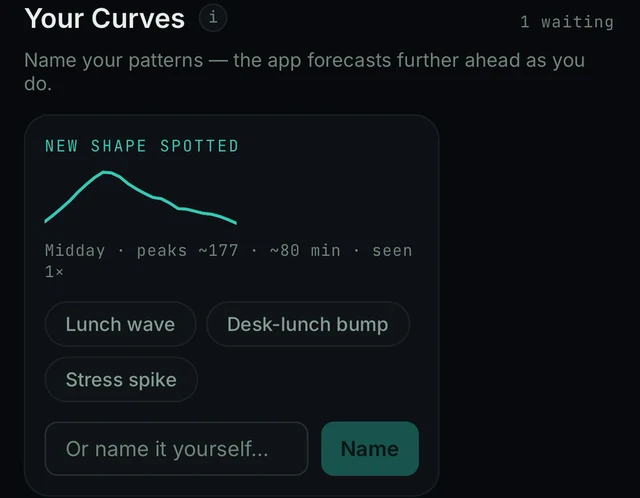
Today, scrolled down to Your Curves in the demo: the heading with the i button and 1 waiting, and the NEW SHAPE SPOTTED card below it.
Wait for a NEW SHAPE SPOTTED card
When the app has seen a repeating shape, a NEW SHAPE SPOTTED card appears under the heading, with a small drawing of the curve and one line that describes it. In the demo that line reads Midday · peaks ~177 · ~80 min · seen 1×: when it happens, how high it goes, how long it lasts and how often it has been seen.
No card yet? Then the app has not spotted a repeating shape for you. The learning strip at the top of Today (day 1 of 15 · learning your patterns) shows how far along it is. To see the card with sample data, tap Explore the demo on the sign-in screen; the demo ships with one shape waiting to be named.
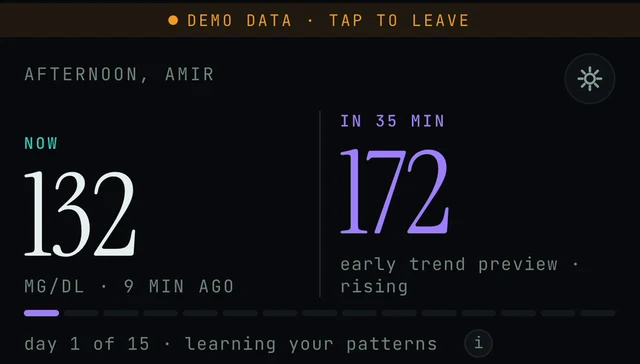
Today in the demo: the DEMO DATA banner, the forecast, and the learning strip. Your Curves sits further down the same screen.
Pick a suggested name, or write your own
NEW SHAPE SPOTTED → a chip, or Or name it yourself...
The card offers three suggestions as chips. In the demo they are Lunch wave, Desk-lunch bump and Stress spike. They are generic guesses from the shape's timing and size, so you do not have to pick one.
- Tap a chip to choose that name.
- Or tap Or name it yourself... under the chips and type a short name you will recognise later: the meal, the time of day or the situation that produces the shape.
Tap Name
NEW SHAPE SPOTTED → Name
The Name button is dimmed until a name is chosen. Once you have tapped a chip or typed your own, tap Name. Done.
If Name does nothing, close and reopen the app, return to Your Curves and try again. On Android, if the keyboard covers the field, update to the newest version from Google Play; 5.1.2 fixed text fields hiding behind the keyboard. More in Android troubleshooting.
Why name them at all
The line under the Your Curves heading says the app forecasts further ahead as you name your patterns, and the store listing says the forecast horizon grows as the app learns your days. Today the forecast reaches 60 minutes ahead. How the forecast and its confidence work: Forecast and confidence.
Good to know
- Names stay on the phone. Saving curve names, the forecast horizon and the learning clock to your account is on the app's planned list and has not shipped. A reinstall or a new phone starts the learning period again and clears the names.
- Demo names do not carry over. The demo restarts from day 1 of 15 on every visit. Name your curves again once you are on live data.
- There is no rename. The app's screens show no way to rename a curve afterwards, so choose carefully. If a name must change, tell us through Settings → Report a problem.
- "1 waiting" can look cut off. The floating settings icon can cover the end of the label at some scroll positions, so it reads "1 wai". Scroll a little and the full label comes back.
- Units do not change a shape. A curve keeps its shape in mg/dL or mmol/L. More: Glucose units.
Frequently asked
- Why should I name my curves?
- Because the app forecasts further ahead as you do. Pick a suggestion or type your own, then tap Name.
- I cannot find Your Curves.
- Open the Today tab and scroll down past the chart. If it is not there, look in the Trends tab. On builds older than 5.1.2 the section was called Curve Deck; it is the same feature.
- Do I have to use one of the suggested names?
- No. Tap Or name it yourself..., type a short name, then tap Name. The suggestions are generic guesses from the shape's timing and size.
- Can I rename a curve later?
- The app's screens show no way to rename a curve. Choose carefully, and if a name must change, tell us through Settings → Report a problem.
- Are my curve names saved to my account?
- Not yet. They are kept on the phone. Saving them to the account is planned, not shipped, so a reinstall or a new phone clears them.
Still stuck? We answer.
A person at Bio-Conscious reads every message. Tell us your phone model, your sensor, your app version and what you see on the screen.
An AI care assistant answers glucose questions, not a person. How the Care Line works
Written for Endobits Companion 5.1.2. Your app may be newer than this page. If your screen looks different or your problem is missing, email us (fastest) or call. Real app screens · demo data. Endobits shows insights, not medical advice. Always follow your care team's guidance and your sensor's own alerts for treatment decisions.
More help: All support articles · Learning and Your Curves · Forecast and confidence