Signing in, your account and your data
Which button to tap on the first screen, why an old Diabits login does not work, what the consent line covers, and how to delete your account.
Which button do I tap on the first screen?
Why. The first screen offers three paths and does not explain them. Live readings from your own sensor need an account. The demo does not.
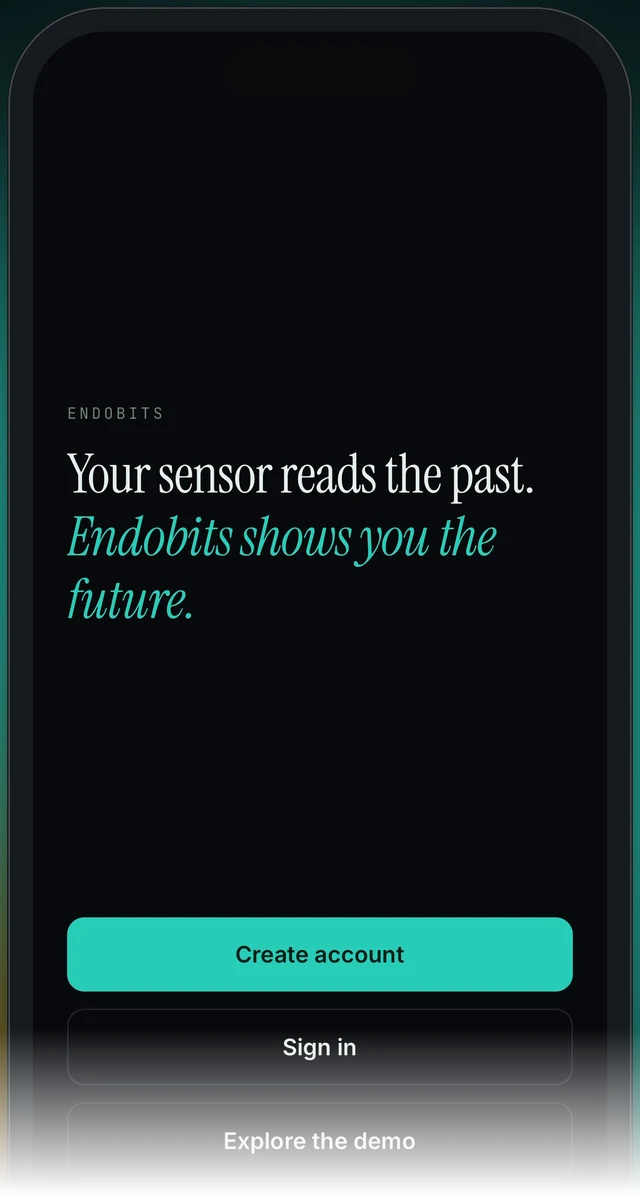
The first screen, before you sign in. Create account is the filled teal button at the bottom; Sign in and Explore the demo sit under it.
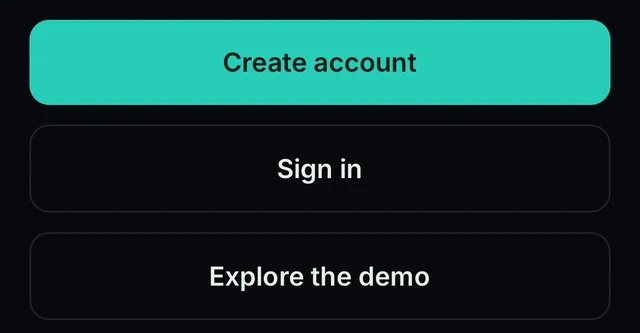
Close-up of the three buttons at the bottom of the first screen.
First screen → Create account · Sign in · Explore the demo
- New to Endobits Companion: tap Create account (the filled teal button at the bottom of the first screen). Diabits accounts are not carried over, so do not use an old Diabits login. See Old Diabits login below and Diabits is now Endobits Companion.
- Already made an Endobits Companion account: tap Sign in.
- Want to look around first, or no sensor yet: tap Explore the demo. The whole app runs on simulated data with no account and no sensor. To leave the demo, tap the DEMO DATA · TAP TO LEAVE banner at the top of the Today screen.
- After Create account or Sign in, connect your sensor from the Care tab. Steps for each sensor: Connect your sensor.
- Then pick your units (mg/dL or mmol/L) in Settings: Today → top-right icon → Settings, and look for the units option. Full walkthrough: Set up Endobits Companion.

In the demo, this banner sits at the top of the Today screen. Tap it to leave the demo.

Today screen, top-right corner: this icon opens Settings (units, privacy policy link, account deletion).
My old Diabits login doesn't work
Why. Diabits was retired. Endobits Companion is a complete rebuild released in 2026, and Diabits accounts and data were not carried over automatically. The new app needs a new account.

Today screen, under the NOW reading: the 15-day learning strip (demo data shown).
First screen → Create account
- On the first screen tap Create account and make a new Endobits Companion account. (The three buttons are shown in the figures above.)
- Your old Diabits account and data are not carried over automatically, so expect to start from the beginning. The app learns your patterns from your own readings over the first days (on the demo, the learning strip on the Today screen reads day 1 of 15 · learning your patterns).
- Connect your sensor in the new app. Follow Connect your sensor (Apple Health, or a direct connection in the Care tab). On Android, see Endobits Companion for Android.
- For questions about your old Diabits account or its data, email contact@bioconscious.tech. A person will answer.
- What changed between the apps: Diabits is now Endobits Companion.
Do I need a clinic code or a doctor to get in?
Why. Some people remember an earlier Endobits sign-up, back in 2023, that seemed to need a clinic code. The current first screen offers Create account, Sign in and Explore the demo, with no code field. The app has an Invite your clinician option, which opens the clinic form.
First screen → Create account or Explore the demo
- Open the app. The first screen shows three choices: Create account, Sign in and Explore the demo. There is no clinic code field on this screen.
- To use the app without any account or sensor, tap Explore the demo. The whole app runs on simulated data.
- To get your own data in, tap Create account and follow the sign-up steps (on version 5.1.2 and later, sign-up shows a consent line). If you want your clinic involved, look for Invite your clinician inside the app; it opens the clinic form (what happens next: Invite your clinician). We have not yet confirmed which screen it lives on.
- If any screen asks you for a clinic code, update the app to the latest version your store offers and tell us: Settings → Report a problem on version 5.1.2 (attach a screenshot if you can), or email contact@bioconscious.tech.
Sign in hangs, or the app signed me out on its own
Why. The sign-in service can be slow or throttled. In builds before 5.1.2, a slow or throttled response made the app sign you out. Version 5.1.2 keeps you signed in through it. At the time of writing, 5.1.2 is pending on the App Store and is a preview build on Android, so many phones still run the older behaviour.
First screen → Sign in · Today → top-right icon → Settings
- Give it a moment, then tap Sign in once more on the first screen (Create account / Sign in / Explore the demo).
- Check that the phone has a working internet connection and try again.
- If you were signed out, sign in again from the first screen with the same login.
- Keep the app up to date. The fix for being signed out by a slow sign-in service is in version 5.1.2. At the time of writing, 5.1.2 is pending on the App Store and is a preview build on Android, so it may not be offered to you yet. You can look for your app version in Settings (Today → top-right icon → Settings).
- If it keeps happening: on version 5.1.2 open Settings and use Report a problem to send diagnostics. On earlier versions, email contact@bioconscious.tech or call +1 (236) 235-5295 with your phone model, app version and the time it happened.
There's a consent line when I create an account. What am I agreeing to?
Why. Since version 5.1.2, Create account shows a consent line and Settings links to the privacy policy. The app only uploads health data with your consent, and it records which version of the consent you agreed to. Glucose and health data are analysed on your device. There are no ads and no data sale, and analytics events can never carry a glucose value or a medication name.
First screen → Create account · Today → top-right icon → Settings
- Read the consent line shown when you create an account. The app also links to the privacy policy from Settings: Today → top-right icon → Settings, then look for the privacy policy link. The policy is also on the web at endobits.com/privacy.
- If you are not ready to create an account, tap Explore the demo instead. The demo needs no account and no sensor.
- If you later want your data removed, delete your account from Settings (the store listing says you can delete your account any time from Settings; see How do I delete my account?), or email contact@bioconscious.tech.
- If you do not see a consent line when creating an account, you are on a build older than 5.1.2, which is the version that adds it. 5.1.2 is still rolling out (TestFlight on iOS, preview on Android), so your store build may not have it yet. Your data handling is the same either way: glucose and health data are analysed on your device, there are no ads and no data sale.
"Analysed on your device", but the app asked to upload health data
Why. Both are true. The store listing says glucose and health data are analysed on your device, with no ads and no data sale. Since version 5.1.0 the app also has a consented health data upload with a versioned consent record: it runs only if you agree, the app keeps a record of which consent version you accepted, and the source pill reads "syncing…" while an upload runs. Android (5.1.1 and later) has per-platform consent. Meter calibrations (5.1.2) travel with that upload. Analytics events can never carry a glucose value or a medication name.
Today → top-right icon → Settings
- If you are on 5.1.2 or later, read the consent line on the sign-up screen before you agree. The upload only runs with your consent, and the app keeps a record of which consent version you accepted.
- On 5.1.2 and later, Settings also has a privacy policy link; open it to read what the upload is for. (Older builds do not have this link. The policy is also at endobits.com/privacy.)
- To review or withdraw your consent, open Settings and look for a consent or privacy option. We have not confirmed exactly where this control lives, so if you cannot find it, use Settings → Report a problem (version 5.1.2) or email contact@bioconscious.tech and ask.
- To stop everything, delete your account from Settings. The store listing confirms you can delete your account at any time from Settings. Steps: How do I delete my account?
Finding the privacy policy and what you agreed to at sign-up
Why. Version 5.1.2 adds a privacy policy link in Settings and a consent line on sign-up. The current store builds (App Store 5.1.0, Google Play 5.1.1) do not have the link in Settings yet. The policy itself is on the web.
Today → top-right icon → Settings
- Open Settings from the top-right icon on Today.
- Look for a privacy policy link in Settings. It is being added in version 5.1.2, which is still in testing (TestFlight on iPhone, preview build on Android) and is not in the App Store or Google Play builds yet.
- If you do not see the link, read the policy on the web at endobits.com/privacy, or email contact@bioconscious.tech or call +1 (236) 235-5295 and ask for it. If your build has Report a problem in Settings, you can use that instead.
- To check which version you have, open Settings; it shows the build's version number (fixed in 5.1.1 to show the real version).
How do I delete my account?
Why. This is a question rather than a fault. Account deletion is in the app's Settings: the store listing says you can delete your account any time from Settings.
Today → top-right icon → Settings
- On the Today screen, tap the icon in the top-right corner to open Settings (the icon is shown in the first section).
- In Settings, look for the option to delete your account and follow the confirmation steps.
- If you also want to stop sharing health data with Endobits on your phone, check the Apple Health permissions described on Connect your sensor (iPhone Settings → Privacy & Security → Health → Endobits) and turn sharing off, then uninstall the app if you wish.
- If you cannot sign in to reach Settings, contact us through the channels at the bottom of this page (email contact@bioconscious.tech or call +1 (236) 235-5295) and we will help with your account.
The demo has no account, so if you only ever tapped Explore the demo there is nothing to delete.
Frequently asked
- Do I need an account to try Endobits Companion?
- No. Tap Explore the demo on the first screen and the whole app runs on simulated data, with no account and no sensor. Live readings from your own sensor do need an account. Leave the demo any time by tapping the DEMO DATA · TAP TO LEAVE banner at the top of the Today screen.
- I can't remember my sign-in details. What do I do?
- Tap Sign in on the first screen and look for a reset option there. If you cannot find one, email contact@bioconscious.tech and we will help you get back in.
- What does creating an account send to Endobits?
- Glucose and health data are analysed on your device. Health data is uploaded only with your consent, and the app records which version of the consent you agreed to. Analytics events can never carry a glucose value or a medication name. There are no ads and no data sale. The privacy policy is linked in Settings (version 5.1.2 and later) and is on the web at endobits.com/privacy. The exact fields collected at sign-up are not listed here.
- Does Endobits show ads or sell my data?
- No. The store listing says glucose and health data are analysed on your device, with no ads and no data sale. Analytics events can never carry a glucose value or a medication name.
- What is the consent record?
- Since 5.1.0 the app uploads health data only with your consent and keeps a versioned record of the consent you accepted. From 5.1.2 a consent line appears at sign-up and a privacy policy link is in Settings. Where you review or withdraw consent inside the app is not confirmed yet; email contact@bioconscious.tech if you want to change it.
- If I delete the app from my phone, is my account deleted?
- No. Delete the account from Settings (top-right icon on Today) while signed in. Removing the app only removes it from your phone. The demo has no account, so there is nothing to delete in demo mode.
Still stuck? We answer.
A person at Bio-Conscious reads every message. Tell us your phone model, your sensor, and what you see on the screen.
Real app screens · demo data. Endobits shows insights, not medical advice. Always follow your care team's guidance, your meter and your sensor's own alerts for treatment decisions.
More help: All support articles · Connect your sensor · Set up Endobits Companion