Settings, your version number and how to reach us
There is no Settings tab: it is the top-right icon on Today, and this page also covers the version number, the theme, the service notice banner, what Report a problem sends, and every way to contact support.
Can't find Settings? There is no Settings tab
Why. Settings is not a bottom tab. It opens from the small round icon in the top-right corner of the Today screen, on the same line as the greeting (the demo shows AFTERNOON, AMIR). The icon is in the same place in the dark theme and the light theme.
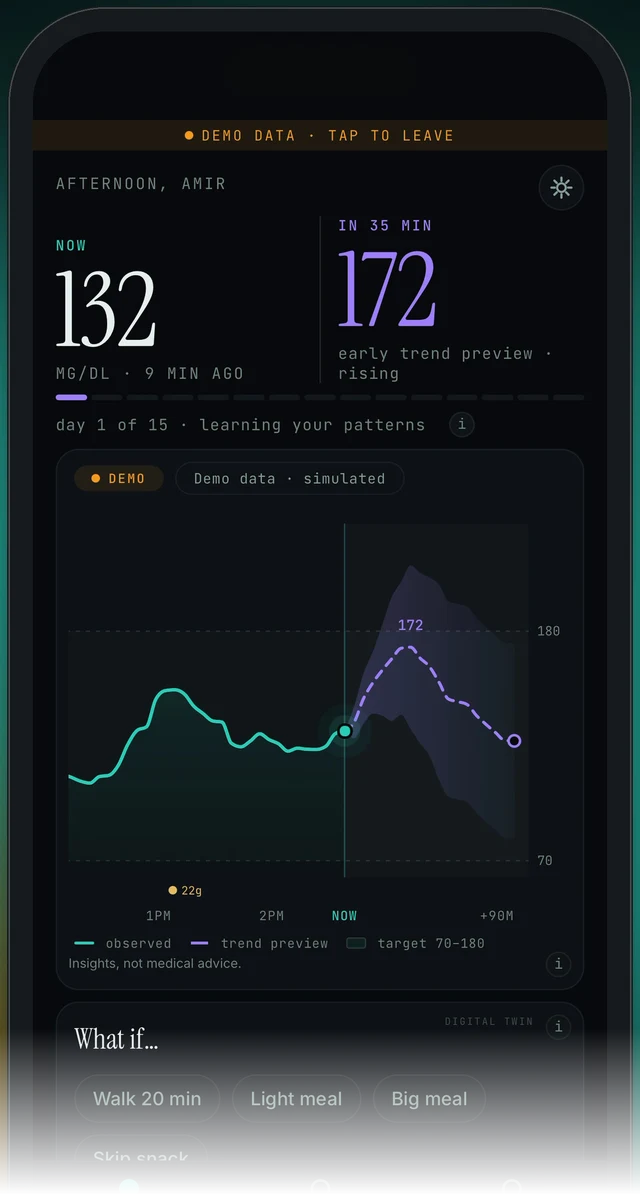
Today screen (demo, dark theme). The circled icon in the top-right corner opens Settings.

Zoom on the top of the Today screen. The banner only appears in the demo; the Settings icon sits at the right end of the greeting line.
Today → top-right icon → Settings
- Tap the first bottom tab, Today.
- Look at the top-right corner of the screen, on the same line as the greeting. Tap the small round icon there.
- The Settings menu opens. Glucose units (mg/dL or mmol/L) and account deletion live here, and so does the app's version number (see below). On version 5.1.2 and later, Settings also has Report a problem and a Privacy policy link; 5.1.2 is still rolling out, so not every phone has them yet. Units: Glucose units. Deleting your account: Signing in, your account and your data.
Finding your version number
Why. Settings shows the app's version. Builds before 5.1.1 could show the wrong number; 5.1.1 fixed that, so Settings shows the build's real version. Where the number sits inside Settings is not shown in our screens, so scroll the whole menu. As of 1 October 2026: on iPhone the App Store build is 5.1.0 (live since 9 September 2026), 5.1.1 is on TestFlight only, and 5.1.2 (build 33) is on TestFlight with App Store submission pending. On Android, 5.1.1 is the first Google Play release and 5.1.2 is a preview build.
Today → top-right icon → Settings → version number
- Tap the top-right icon on Today to open Settings.
- Look through Settings for the app version number. Its exact position is not confirmed, so scroll the whole menu.
- Include that number in any message to us. It tells us which fixes you already have.
- If you are not sure the number is right: 5.1.1 fixed Settings showing the wrong version. On iPhone, the App Store build is 5.1.0, and 5.1.1 and 5.1.2 are on TestFlight only (as of 1 October 2026), so an App Store user may still see the old behaviour until the next App Store release. On Android, the first Google Play release is 5.1.1, which already has the fix. If in doubt, tell us the number you see and which store you installed from.
The app looks light (or dark) and you want the other theme
Why. Endobits Companion has a light theme and a dark theme. The real app screens show the same Today screen in both. Our sources do not show where the switch lives, or whether the app simply follows your phone's light or dark setting. Your readings and the 60-minute trend preview are the same in both themes.
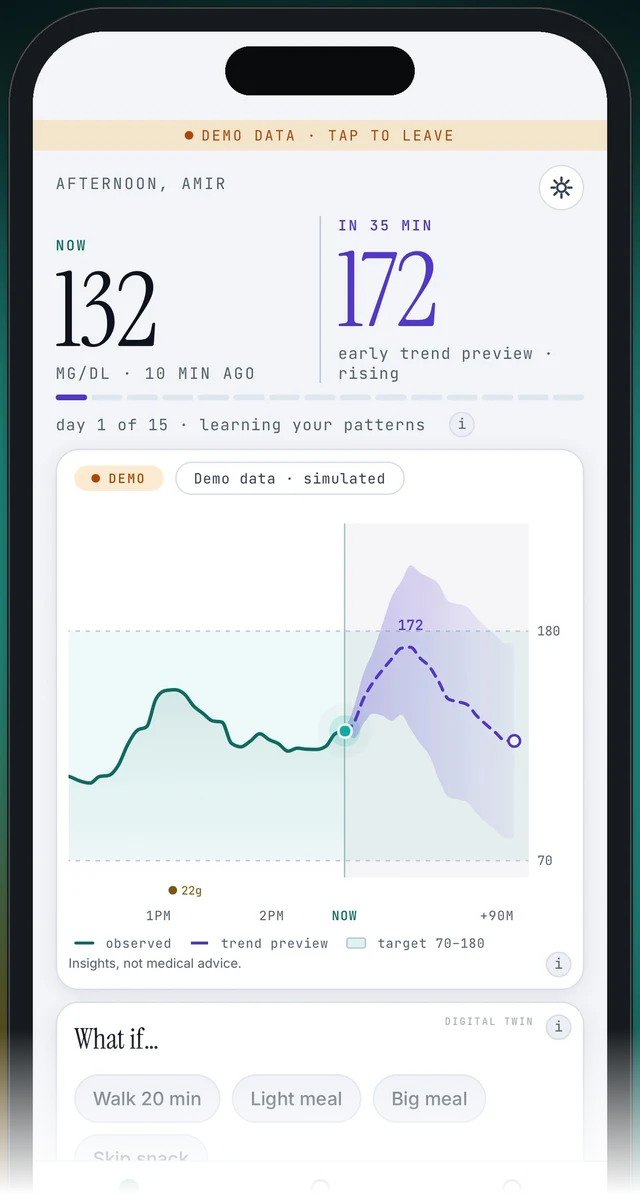
The same Today screen in the light theme: NOW 132, IN 35 MIN 172, the same chart. Only the colours change.

Light theme, top of the Today screen. The Settings icon is in the same top-right spot.
Today → top-right icon → Settings
- Endobits Companion has a light look and a dark look. The real app screens show the same Today screen (NOW, IN 35 MIN, the chart, the What if chips) in both, so your readings and the 60-minute trend preview are the same whichever one you see.
- Open Settings from the top-right icon on Today and look for a theme or appearance option. Our sources do not show this option, so it may not be there. If it is not, the app may be following your phone's own light or dark setting; check that in your phone's display settings.
- If you cannot find a way to switch, tell us through Settings → Report a problem (attach diagnostics if you like) or email contact@bioconscious.tech, and include your phone model and the version number shown in Settings. Say which theme you want.
A service notice banner appeared in the app
Why. No. Since version 5.1.2 Endobits can show a service notice banner that Bio-Conscious sends to the app remotely. It is a message from us, not something your phone or your settings caused. Our sources do not say what a notice can be about, and the banner's look and exact wording are not in our screenshots, so read the banner itself.

The one banner we can show: DEMO DATA · TAP TO LEAVE, at the top of Today in the demo. A service notice is a different banner, sent by Bio-Conscious.
Today → top-right icon → Settings → Report a problem
- Read the banner. If it says DEMO DATA · TAP TO LEAVE, you are looking at the demo, not your own data. Tap the banner to leave the demo. More on this: Demo vs live data.
- If it is a service notice from Bio-Conscious, you did not cause it. Read what it says. It is sent from our side, so there is nothing to fix on your phone.
- Keep using your CGM or meter and its own alerts for any decisions. Endobits gives insights, not medical advice.
- If the notice does not go away or you are not sure what it means, send it to us: Today → top-right icon → Settings → Report a problem, or email contact@bioconscious.tech or call +1 (236) 235-5295.
"Report a problem" is not in your Settings
Why. Report a problem was added in version 5.1.2. As of 1 October 2026, 5.1.2 was iOS build 33 on TestFlight with App Store submission pending, and an Android preview build only. The App Store release (5.1.0) and the first Google Play release (5.1.1) do not have it. The Privacy policy link in Settings arrived in the same version.
Today → top-right icon → Settings → Report a problem (version 5.1.2 and later; also on the sensor help screen)
- Open Settings from the top-right icon on Today and look for the version number. (Settings shows the build's version; on 5.1.0 the number shown may not be accurate, since the fix "Settings shows the build's real version" arrived in 5.1.1.)
- If the version is lower than 5.1.2, open the App Store or Google Play, search for Endobits Companion and install any update offered. If the store will not install or update the app, see Can't install the app.
- If no update is offered yet, email contact@bioconscious.tech or call +1 (236) 235-5295. Include your phone model, your sensor, the version number and what you see on screen.
What does Report a problem send?
Why. Report a problem attaches only the diagnostics you choose; nothing is attached unless you pick it. Our sources do not list what each diagnostic contains, so we cannot say here whether a chosen diagnostic includes readings. Separately, from version 5.1.2 the app's analytics events can never carry a glucose value or a medication name. Report a problem is also reachable from the sensor help screen.
Today → top-right icon → Settings → Report a problem
- Open Settings from the icon in the top-right corner of Today, then look for Report a problem. (Added in version 5.1.2; if you do not see it, your build may be older. Check the version shown in Settings.)
- Describe what you see on screen, then choose which diagnostics, if any, to attach. Nothing is attached unless you choose it.
- If you would rather not attach any diagnostics, email contact@bioconscious.tech or call +1 (236) 235-5295 instead.
An older help page shows a different phone number or email
Why. Two older pages in this section, Dexcom and Eversense, still carry an earlier contact block with a different phone number and email address. The details in the site footer, in the app and at the bottom of this page are the current ones. This is a fix for us to make on the site, not something you can change.
Today → top-right icon → Settings → Report a problem
- Use the contact details from the site footer: contact@bioconscious.tech or +1 (236) 235-5295.
- From the app: Today → top-right icon → Settings → Report a problem, and choose which diagnostics to attach (version 5.1.2 and later).
Frequently asked
- Where is Settings?
- Tap the small round icon in the top-right corner of the Today screen, on the same line as the greeting. Settings is not one of the bottom tabs (Today, Trends, Care).
- Does the light theme change my numbers or my forecast?
- No. The dark and light store screens show the same Today screen: NOW 132, IN 35 MIN 172, the same chart. Only the colours change. The theme is a display choice; where it is switched is not shown in our sources, so look in Settings (top-right icon on Today).
- Which version of the app should I have, and where do I check?
- On the Today screen tap the icon in the top-right corner to open Settings. Settings shows the app's version. As of 1 October 2026: the iOS App Store release was 5.1.0 (live since 9 September 2026), 5.1.1 was on TestFlight only, and 5.1.2 (build 33) was on TestFlight with App Store submission pending. On Android, 5.1.1 was the first Google Play release and 5.1.2 was a preview build. Report a problem, the Privacy policy link, calibration and the sign-in fix need 5.1.2 or later.
- Is Report a problem only in Settings?
- No. In 5.1.2 and later it is in Settings and on the sensor help screen. You choose which diagnostics to attach. If your version is older, email contact@bioconscious.tech or call +1 (236) 235-5295.
- How do I get help with a connection problem, and what should I include?
- In the app: Settings → Report a problem (5.1.2 adds it in Settings and on the sensor help screen, with diagnostics you choose to attach). Or email contact@bioconscious.tech, or call +1 (236) 235-5295. Include your sensor model, which connection you used (Apple Health, Health Connect, Dexcom API, DIY rig) and your phone and app version. Checks to run first: No data or not updating and Connection problems.
Still stuck? We answer.
A person at Bio-Conscious reads every message. Tell us your phone model, your sensor, and what you see on the screen.
Real app screens · demo data. Endobits shows insights, not medical advice. Always follow your care team's guidance and your sensor's own alerts for treatment decisions.
More help: All support articles · Connect your sensor · Set up Endobits Companion