A connection will not complete
What to do when a row in Your data connection is missing, says COMING SOON, loops back after you sign in, or your DIY rig address and token are rejected.
The Dexcom API row is missing from Your data connection
Why. The direct Dexcom connection works with US Dexcom accounts only. Dexcom is also offered only in regions where the Dexcom client is enabled, and which connections are offered can be pinned per app version from the server. So the row can be hidden outside the US, or on an old build.

Bottom of every screen: tap Care, the right-hand tab.
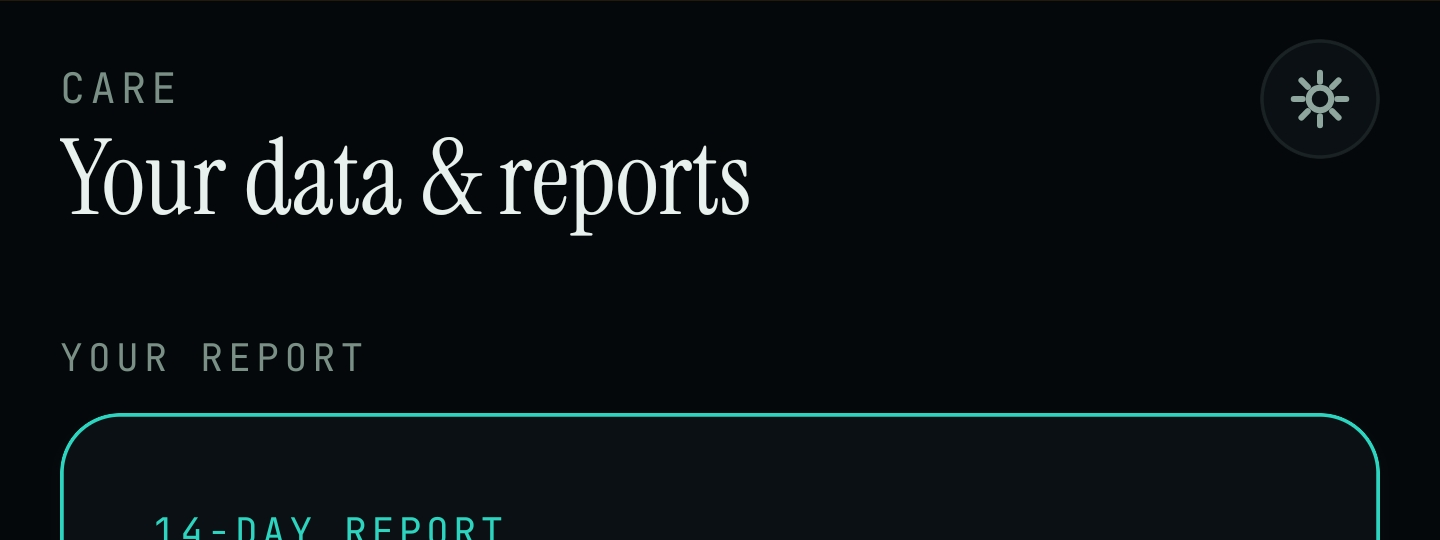
Care tab, headed Your data & reports. Scroll down past Your report to reach Your data connection.

Care tab → Your data connection: the Dexcom API row with its Connect button. This is the row that can be missing outside the US.
Care → Your data connection → Dexcom API → Connect
- Tap Care at the bottom of the screen, scroll down to Your data connection and look for Dexcom API.
- If the row is there and your Dexcom account is a US account, tap Connect. Sign in with your Dexcom account, the same one you use in the Dexcom app, not an Endobits account. Approve the connection when asked. Dexcom API then shows as connected in the same list.
- If your Dexcom account is not a US account, the direct connection will not work. That is a current limit, not a bug. Use the route for your phone under Dexcom outside the US below.
- US account, but still no row? Try again, then check your app version in Settings (Today → top-right icon → Settings) and install any update the App Store or Google Play offers. Which connections are offered can depend on your app version, so an update may bring the row back. We have not confirmed this on a live phone yet.
- Still missing on the current build with a US account? Use Settings → Report a problem (version 5.1.2) and say which country your Dexcom account is registered in and the app version Settings shows. Or email contact@bioconscious.tech or call +1 (236) 235-5295.
Dexcom sign-in does not complete, or loops back to Connect
Why. Most often it is the wrong account. People type their Endobits email and password on Dexcom's page, but that page wants the Dexcom username and password from the Dexcom app. Two older faults are fixed: on the first Android build a sign-in could be lost if Android closed the app part-way (fixed in 5.1.1, the first Google Play release), and on builds before 5.1.2 a slow sign-in service could sign you out mid-way.
Care → Your data connection → Dexcom API → Connect
- Install any Endobits update the App Store or Google Play offers. On Android, 5.1.1 already includes the fix that lets a Dexcom sign-in complete even if Android closed the app mid-way, so most Android installs have it.
- Tap Care at the bottom of the screen, scroll to Your data connection and tap Connect on the Dexcom API row (shown in the figures above).
- The page that opens is Dexcom's own sign-in page. Endobits never sees your password. Sign in with the Dexcom username and password you use in the Dexcom app, not your Endobits email and password.
- Approve the connection when asked.
- Back in the Your data connection list, Dexcom API should show as connected. Give it a few minutes, then open the Care tab again before judging.
- Outside the US? The direct connection works with US Dexcom accounts only. Do not keep retrying. Use Dexcom outside the US below.
- Still stuck? Settings → Report a problem (version 5.1.2; attach the diagnostics you choose), or email contact@bioconscious.tech or call +1 (236) 235-5295 with your sensor model and your phone model.
Dexcom refuses my account: I am outside the US
Why. The direct Dexcom link works with US Dexcom accounts only, and Dexcom is offered only in regions where the Dexcom client is enabled. This is a current limit, not a bug. Your readings can still reach Endobits through the health store on your phone: Apple Health on iPhone, Health Connect on Android.
iPhone: Dexcom app → Profile → Apple Health → ON
Android: Care → Your data connection → Health Connect → Connect
- Stop retrying the Dexcom sign-in with a non-US account. It will not go through.
- iPhone, any Dexcom or Stelo sensor: open the Dexcom app (or the Stelo app), tap Profile (on some versions Settings), tap Apple Health and turn sharing ON. Readings usually appear in Apple Health within about 60 minutes, and Endobits picks them up from there. Then check iPhone Settings → Privacy & Security → Health → Endobits and make sure Glucose is ON. Full steps: Connect your sensor and Connect Apple Health.
- Android, Dexcom G6 or Stelo: tap Care, scroll to Your data connection and tap Connect on the Health Connect row. Dexcom G6 and Stelo already write glucose to Health Connect. Readings that reach Health Connect arrive about three hours behind the sensor. Steps: Connect Health Connect.
- Android, Dexcom G7: G7 does not write to Health Connect yet, and the direct Dexcom link is US only, so there is no G7 route on Android outside the US today. The Android troubleshooting page covers sensors that do not write to Health Connect yet.
- Tell us where you are so we can let you know when the limit lifts: Settings → Report a problem, or email contact@bioconscious.tech.
Eversense API says COMING SOON
Why. Expected, not an error. The direct Eversense connection shows coming soon on iPhone until Senseonics production credentials arrive. It can be switched on from the server without an App Store update, and tapping the row signs you up to be told the day it goes live. On Android, Eversense is coming soon as well.
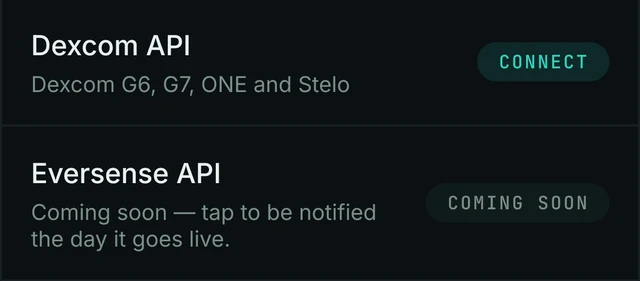
Care tab → Your data connection: Eversense API shows a COMING SOON chip where Dexcom API shows Connect.
Care → Your data connection → Eversense API (COMING SOON)
- Tap Care, scroll to Your data connection and find Eversense API. The row reads "Coming soon, tap to be notified the day it goes live", with a COMING SOON chip where the other rows show CONNECT.
- Tap the row to be notified. You do not need a new app version. The connection is turned on from the server without a store release.
- In the meantime, on iPhone, use Apple Health: open the Eversense app and turn on Apple Health sharing in its settings. Then confirm iPhone Settings → Privacy & Security → Health → Endobits → Glucose is ON.
- Readings then flow Eversense app → Apple Health → Endobits. Full steps: Connecting Eversense to Endobits.
DIY rig will not connect: address or token rejected
Why. Endobits verifies a DIY rig connection as you enter it, so a bad address or token fails right there. The usual causes: the address is incomplete (it needs the full https address of your site, nothing more), the token does not have read permission, or the token was mistyped.

Today screen, top-right corner: this icon opens Settings, where the DIY rig connection lives.
Today → top-right icon → Settings → Connections → DIY rig
- On the Today screen, tap the icon in the top-right corner to open Settings. Then go to Connections → DIY rig.
- Enter your rig's address in the form https://yourname.example.com: the full https address of your self-hosted glucose site, with nothing after it.
- Enter an access token that has read permission on your rig. Copy and paste it to avoid typos.
- Endobits verifies the connection as you enter it and starts reading right away. This is the real-time path, so there is no Apple Health delay.
- If the connection verified but the Today screen looks stale, bring Endobits back to the foreground. From version 5.1.2, DIY rig connections refresh when the app returns to the foreground, not only at launch. If it still looks stale, see No data, or not updating.
- If it still fails, use Settings → Report a problem (choose which diagnostics to attach) and say it is a DIY rig connection, or email contact@bioconscious.tech or call +1 (236) 235-5295. Do not paste your token into an email.
Setting up a rig from scratch: DIY rig. All connection routes side by side: Connect your sensor.
Frequently asked
- Which connection should I use on iPhone?
- Two routes. Apple Health works with almost every sensor: your sensor's own app writes readings to Health and Endobits reads them there, up to about 60 minutes behind. A direct connection lives in the Care tab under Your data connection: Dexcom API (US accounts) today, Eversense API coming soon. A DIY rig (Settings → Connections → DIY rig) is the only real-time path. Steps for each are on Connect your sensor.
- Do I need both Apple Health and the Dexcom direct connection?
- One is enough. The connect page recommends the direct connection for US Dexcom accounts and Apple Health everywhere else. We have not documented what happens when both are on, so if you connected both and readings look odd, keep the one that suits your region and mention it in Settings → Report a problem.
- Does Endobits see my Dexcom or Eversense password?
- No. The direct connections open the maker's own sign-in page (Dexcom's, or Senseonics' for Eversense). You sign in there, approve the connection, and Endobits never sees the password. Apple Health access is read-only.
- Is Endobits Companion available in my country, and does Dexcom work there?
- The App Store listing gives availability as United States and Canada. The Dexcom direct connection works with US Dexcom accounts only; elsewhere, including Canada, use Apple Health. Dexcom is also only offered in regions where the Dexcom client is enabled, so the Dexcom API row may not appear outside the US.
- Does the direct Dexcom link work outside the US?
- No. The direct Dexcom link is for US Dexcom accounts only, and Dexcom is only offered in regions where the Dexcom client is enabled. Outside the US, Dexcom G6 and Stelo users can use Health Connect. There is no G7 route on Android outside the US today.
Still stuck? We answer.
A person at Bio-Conscious reads every message. Tell us your phone model, your sensor, and what you see on the screen.
Real app screens · demo data. Endobits shows insights, not medical advice. Always follow your care team's guidance and your sensor's own alerts for treatment decisions.
More help: All support articles · Connect your sensor · Set up Endobits Companion