Calibrating with a meter reading
On version 5.1.2 and later you can tap the NOW number and enter a meter reading; this page covers what that does to the forecast, the hollow rings it leaves on the chart, and why NOW soon goes back to the sensor's number.
Tapping the NOW number does nothing
Why. Calibration arrived in version 5.1.2. At the time of writing (changelog dated October 1, 2026) that build is on TestFlight for iPhone (build 33) with the App Store submission pending, and on Android it is a preview build only. If you installed 5.1.0 or 5.1.1 from the App Store or Google Play, your app does not have calibration yet, so tapping NOW will not open calibration on it. We have not confirmed whether calibration is available inside the demo.
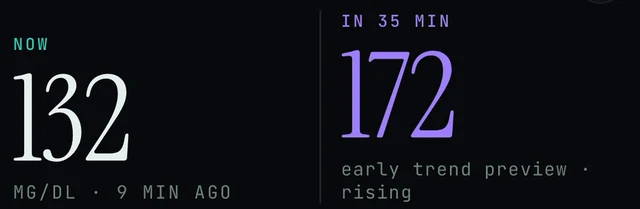
Today screen, under the greeting. The NOW number is the large current reading on the left; on version 5.1.2 and later, tapping it opens calibration. The 60-minute forecast sits beside it.

Today screen, top-right corner: this icon opens Settings, where the app version is shown.
Today → top-right icon → Settings
- Check your version. Open Today → top-right icon → Settings and look for the app version shown there. Since 5.1.1 Settings shows the build's real version; on 5.1.0 the number shown may not be accurate.
- Calibration needs 5.1.2 or later. As of October 1, 2026, 5.1.2 is on TestFlight for iPhone (App Store submission pending) and is a preview build only on Android. Update when your store or TestFlight offers it.
- On 5.1.2, tap the NOW number (the large current reading on Today, to the left of the forecast) and enter your meter reading. It becomes the current reading and shows as a hollow ring on the chart.
- If you are on 5.1.2 and the tap still does nothing, send a report: Today → top-right icon → Settings, then Report a problem, and attach diagnostics, or email contact@bioconscious.tech or call +1 (236) 235-5295. Say which version Settings shows.
Still in the demo? The banner at the top of Today reads DEMO DATA · TAP TO LEAVE. Leaving the demo and getting your own readings in is covered in Demo vs live data and Connect your sensor.
After calibrating, the forecast still says rising
Why. That is expected. The forecast re-runs from your meter value but keeps the sensor's own slope: the curve now starts at the meter number and keeps the same direction. A calibration corrects the level, not the trend.
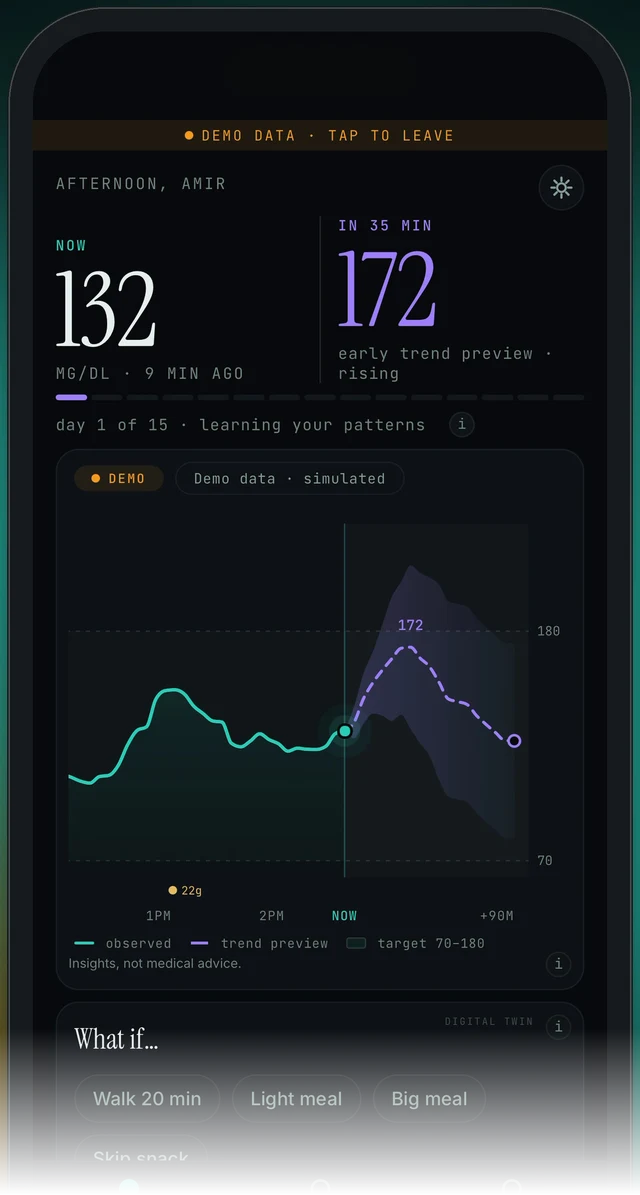
Today screen (demo). The forecast number and its label (early trend preview · rising) sit to the right of NOW. On the chart, the dashed trend preview starts where the solid observed line ends. After a calibration it starts at your meter value instead, with the same slope.
Today → tap the NOW number (version 5.1.2 or later)
- Check you are on version 5.1.2 or later. Settings shows the build version (Today → top-right icon → Settings). Calibration was added in 5.1.2; earlier builds do not have it.
- On Today, tap the NOW number and enter your meter reading. It becomes the current reading.
- Expect the NOW number to show your meter value, and the dashed trend preview on the chart to start from that value.
- Expect the direction label ("rising" or otherwise) to stay the same. The forecast keeps the sensor's own slope, so a calibration moves the level, not the trend.
- Look for a hollow ring on the chart at the calibrated point. That is how the app records a calibration.
- The next sensor reading follows your meter value; later sensor readings are never altered. If the trend still looks wrong after the next few readings, use Settings → Report a problem.
How the 60-minute forecast and the Confidence card work, and why the app never forecasts a low: Forecast and confidence.
My calibration went away after the next sensor reading
Why. This is how calibration is designed. Your meter value becomes the current reading, the next sensor reading follows it, and every sensor reading after that is the sensor's own and is never altered. A calibration is a one-time correction, not a permanent offset applied to the sensor.
Today → tap the NOW number (version 5.1.2 or later)
- No fix needed. In Endobits Companion 5.1.2 your meter value becomes the current reading and the forecast re-runs from it. The next sensor reading follows your calibration; every sensor reading after that is the sensor's own and is never altered. So NOW going back to the sensor's number is expected.
- The calibration stays on the chart as a hollow ring, and it travels with your consented health upload. The source chip shows the sensor's real age after a calibration (see The reading age did not reset).
- If your meter and sensor keep disagreeing, follow your sensor maker's own instructions and talk to your care team. Endobits does not alter later sensor readings. Insights, not medical advice.
- To enter another meter reading, tap the NOW number on Today again.
- Calibration needs version 5.1.2. Check your version in Settings (Today → top-right icon → Settings). On the App Store build before 5.1.2 the NOW number does not open calibration.
Hollow rings or circles on the chart
Why. A hollow ring on the chart marks a calibration you entered by tapping NOW. Separately, on the demo chart the dashed "trend preview" line ends in a hollow circle at its far right. That circle is where the forecast drawing ends, not a calibration.
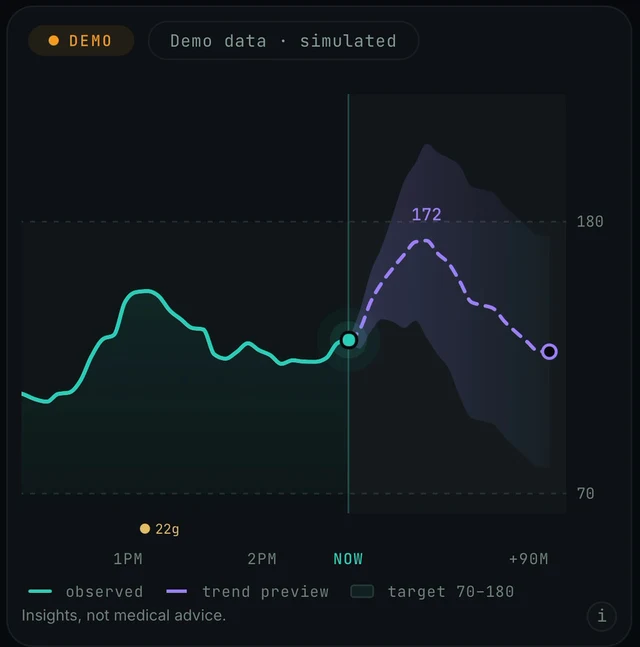
Today screen, chart card (demo). The legend under the chart names the three elements, and there is a small (i) button in the bottom-right corner. No calibration has been entered in this demo screenshot, so it shows no calibration ring.
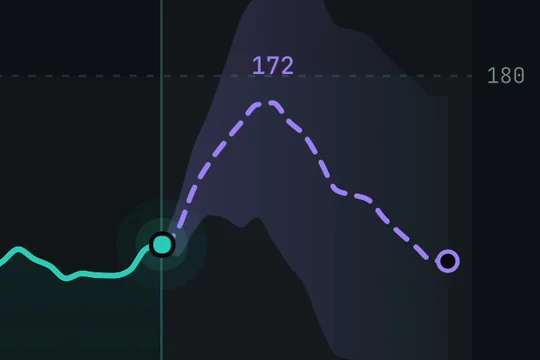
Close-up of the same chart. The filled dot is the current reading at the NOW line; the hollow circle at the end of the dashed line is the end point of the forecast. A calibration ring is a separate hollow ring on the chart (version 5.1.2 and later).
Today → chart card · Today → tap the NOW number
- A hollow ring on the chart marks a calibration: a meter reading you entered by tapping the NOW number. Calibration arrived in version 5.1.2, so if your app is older you will not see these rings.
- On the demo chart the dashed trend preview line ends in a hollow circle at its far right. That is part of the forecast drawing, not a calibration.
- The legend under the chart names the three elements: observed (solid line), trend preview (dashed line) and target 70–180 (shaded band). Every element of the chart is explained in Reading the chart.
- The chart card also has a small (i) button in its bottom-right corner. Tap it for the app's own short explanation.
The reading age did not reset after I calibrated
Why. Expected on 5.1.2. A meter entry is not a sensor reading, so the age keeps counting from the last sensor reading. The 5.1.2 release notes list this as a fix: the source chip shows the sensor's real age after a calibration. That way you always know how old the last sensor reading is.
Today → top-right icon → Settings, then Report a problem
- No action needed. After a calibration the NOW number is your meter value, but the age the app shows counts from the last sensor reading, not from your meter entry. In the demo the reading's age sits under the NOW number (MG/DL · 9 MIN AGO in the first figure on this page). That is by design in 5.1.2, so you always know how old the sensor data is.
- Make sure you are on the latest build. Calibration and this fix arrived in 5.1.2; Settings shows the build's version (Today → top-right icon → Settings).
- If the age keeps climbing with no new sensor readings arriving, the problem is the sensor connection, not the calibration. Check it under Care → Your data connection, and see No data or not updating.
- If you still believe the chip shows the wrong age, send a report: Today → top-right icon → Settings, then Report a problem, and attach diagnostics when asked.
Questions people ask
- Does calibrating change my sensor history?
- No. Your meter reading becomes the current reading and the forecast re-runs from it. The next sensor reading follows the calibration, and all later sensor readings stay exactly as the sensor reported them. The calibration is marked with a hollow ring on the chart.
- Is my calibration uploaded anywhere?
- Calibrations travel with the consented health upload, the same upload you agreed to when you gave consent (see your account and your data). While that upload runs the source chip reads "syncing…". Analytics events never carry a glucose value.
- Can I try calibration in the demo?
- We have not confirmed whether calibration is enabled inside the demo. The demo's readings are simulated, so a calibration there would only be practice. To calibrate with a real meter value, leave the demo first (tap the DEMO DATA · TAP TO LEAVE banner at the top of Today) and connect a source.
Still stuck? We answer.
A person at Bio-Conscious reads every message. Tell us your phone model, your sensor, and what you see on the screen.
Real app screens · demo data. Endobits shows insights, not medical advice. Always follow your care team's guidance and your sensor's own alerts for treatment decisions.
More help: All support articles · Connect your sensor · Set up Endobits Companion